

The Ultimate Guide to Choosing a Computer Docking Station in 2026
2026 Aug 2nd
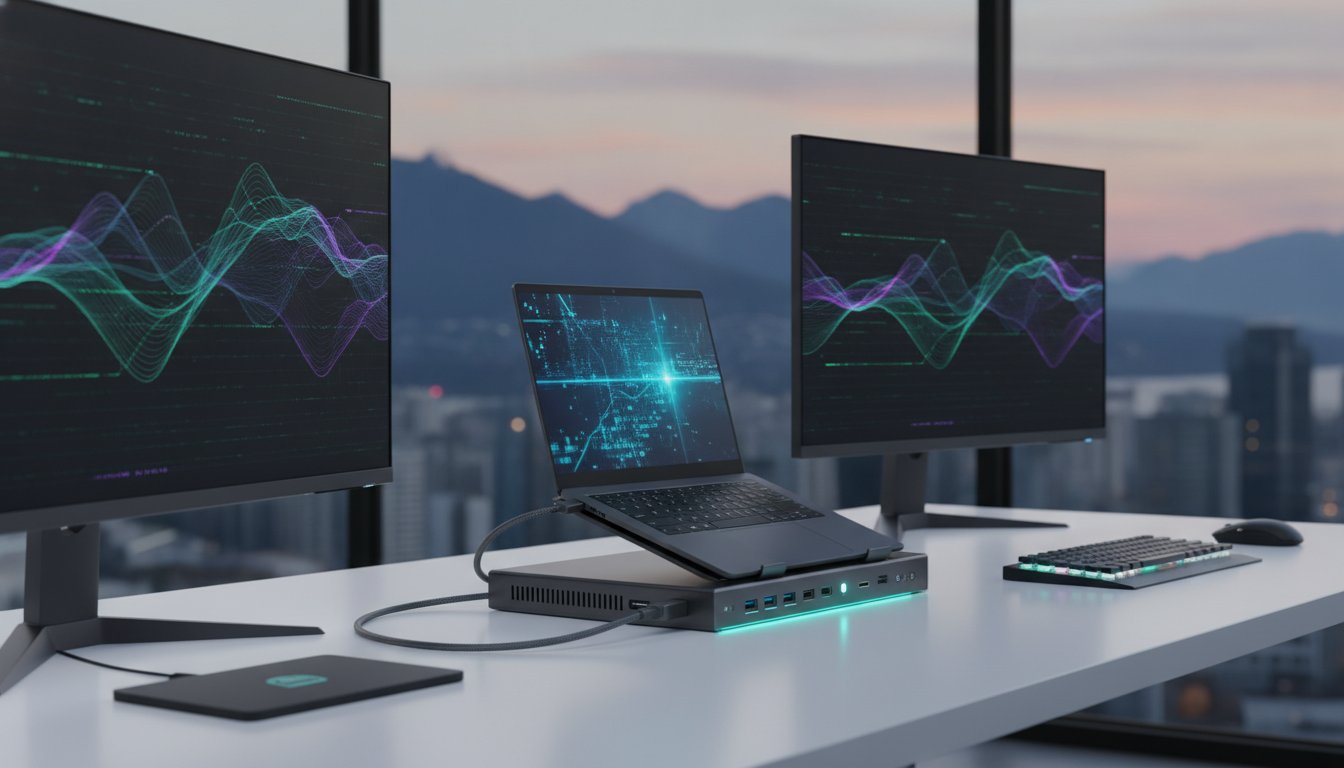
Your laptop is no longer just a portable device; in 2026, it's the primary engine of a high-performance ecosystem that requires more than a simple hub to function. You likely realize that the dream of a clean desk often disappears under a web of cables. Overheating hardware and a lack of ports for HDMI or SD cards create constant friction. It's frustrating to choose between charging your device and connecting your peripherals. Finding the right computer docking station is the specific solution to these daily bottlenecks.
Discover how to transform your laptop into a professional workstation with the right connectivity, power, and ergonomic setup. This guide outlines the path to a streamlined, one-plug environment that supports reliable 4K video and keeps hardware cool during intensive tasks. It previews the latest Thunderbolt 5 and USB4 v2.0 standards. It also explains the importance of integrated stands for airflow and provides a systematic approach to organize a workspace that prioritizes utility, speed, and professional reliability.
Key Takeaways
- Master the shift toward universal USB-C and Thunderbolt 5 standards to achieve a seamless, one-plug workstation setup.
- Understand how Power Delivery (PD) specifications in a modern computer docking station ensure your laptop remains charged even during high-performance tasks.
- Optimize your workspace by choosing hardware that combines multi-port connectivity with integrated ergonomic stands to improve airflow and reduce cable clutter.
- Learn to distinguish between bus-powered portable hubs and self-powered docking stations to match your specific peripheral and multi-monitor requirements.
- Explore the Devia Leopard Series as a professional 11-in-1 solution that organizes your desk while providing high-speed data transfer and durable metal construction.
What is a Computer Docking Station and Why Do You Need One?
A What is a Docking Station? is a hardware interface that allows a portable laptop to connect to multiple peripherals through a single plug. It serves as a centralized connectivity hub. In the past, these were proprietary plastic bases designed for specific enterprise laptops. Today, the industry has shifted toward universal standards like USB-C and Thunderbolt. This transition means one device can support different brands and models. It simplifies the user experience and ensures your hardware remains relevant as you upgrade your laptop.
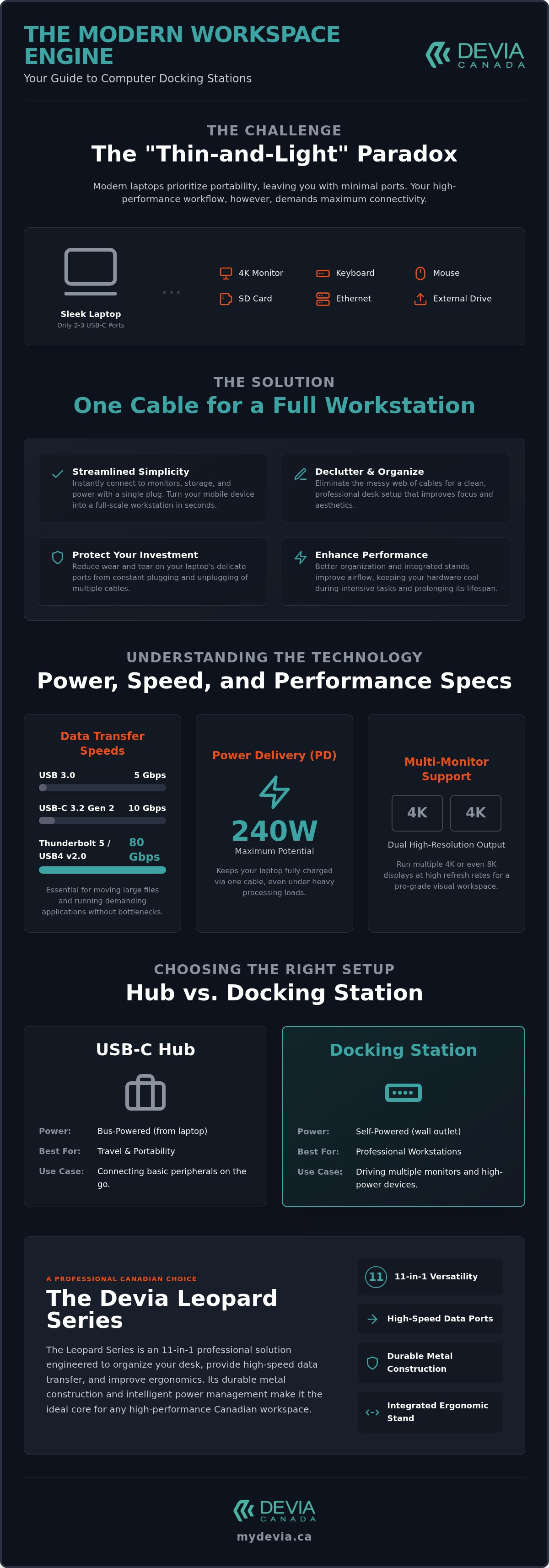
Modern "thin-and-light" laptops prioritize portability but sacrifice physical ports. Most high-end ultrabooks in 2026 feature only two or three USB-C ports. This design necessitates external expansion to maintain a professional workflow. A computer docking station provides the necessary real estate for HDMI, Ethernet, and SD cards. It facilitates a "one-cable" desktop transition. You arrive at your desk, plug in one cable, and instantly connect to monitors, external storage, and power. It turns a mobile device into a full-scale workstation in seconds.
The Evolution of Workspace Connectivity
Legacy docking ports relied on mechanical connections that were bulky and inflexible. Modern Type-C standards have replaced these with high-speed data lanes. As of 2026, hardware demands have reached new heights. Thunderbolt 5 and USB4 Version 2.0 now provide up to 80 Gbps of bidirectional bandwidth. This capacity is essential for professionals running dual 4K or 8K displays at high refresh rates. The shift is also driven by EU regulations that mandate USB-C for all portable electronics. While the focus is on the future, these units must maintain backwards compatibility. They still include USB-A ports for legacy peripherals like older keyboards or specialized industrial sensors. This ensures a smooth transition without replacing every existing accessory.
Key Benefits for Remote Professionals
Streamlining the "hot-desk" experience is a primary advantage for the modern workforce. A single connection manages everything. It eliminates the need to hunt for individual chargers or adapters. This efficiency is critical in hybrid office environments where speed is prioritized. Using a centralized hub also reduces physical wear and tear on your laptop ports. Constant plugging and unplugging of multiple cables can lead to hardware failure over time. By using a computer docking station, you protect the integrity of your primary device. Better cable management also improves laptop longevity. It keeps wires organized and prevents heavy cables from pulling on delicate connectors. A clean workspace isn't just about aesthetics; it's about functional durability and maintaining proper airflow around your machine.
Technical Specifications: Understanding Ports and Power
Choosing the right hardware requires a deep dive into the technical capabilities of your workspace. A modern computer docking station handles massive amounts of data and electricity simultaneously. It isn't just about the number of ports; it's about the standard each port supports. For example, USB 3.0 offers 5Gbps speeds, while USB-C 3.2 Gen 2 doubles that to 10Gbps. Professionals moving large video files or high-resolution images need Thunderbolt or USB4 v2.0, which can reach up to 80Gbps. Integrated card readers are also vital for creative professionals. Having dedicated SD and microSD slots eliminates the need for extra dongles and ensures high-speed file transfers directly from your camera's storage.
Power Delivery (PD) and Fast Charging Explained
Power Delivery is a protocol that allows a single cable to transmit high-speed data and up to 240W of power. This technology is essential for hybrid work because it keeps your laptop charged even under heavy processing loads. Smart hubs negotiate power between the wall outlet and your device. If your computer docking station supports 100W PD pass-through, it ensures a 16-inch laptop doesn't drain its battery while connected to external monitors. Modern units manage power intelligently. They prioritize your laptop while still providing enough juice to fast-charge a smartphone simultaneously without dropping speeds.
Visual Performance and Multi-Monitor Support
Video output is where many users encounter bottlenecks. Understanding the difference between HDMI and DisplayPort is key for a multi-monitor setup. HDMI is ubiquitous for standard monitors, but DisplayPort often supports higher refresh rates and is preferred for daisy-chaining screens via Multi-Stream Transport (MST). A high-quality station allows you to achieve crisp 4K resolution at 60Hz or higher. Lower-tier hubs might cap your refresh rate at 30Hz, which leads to noticeable lag during video editing or gaming. For those using 2026 hardware, ensuring your dock supports the latest DisplayPort 2.1 standard is vital for future-proofing your visual experience.
Reliable hardware makes the difference between a laggy experience and a fluid, professional workflow. If you want a solution that balances these technical demands with a sleek design, you can browse professional docking options designed for the modern Apple and Samsung ecosystem. Selecting a unit with metal construction also helps with heat management, ensuring the internal chips don't throttle during fast charging or high-speed data transfers.
USB-C Hubs vs. Docking Stations: Choosing the Right Setup
Selecting the right hardware requires a clear understanding of your daily workflow. A portable USB-C hub is designed for the mobile professional who needs basic connectivity on the go. These units are typically bus-powered, meaning they draw electricity directly from your laptop. This is convenient for a quick presentation but can strain your battery during long sessions. In contrast, a computer docking station is a permanent fixture. It often features its own power supply, allowing it to support multiple high-draw peripherals like external hard drives and mechanical keyboards simultaneously.
The distinction between portability and permanence is narrowing in 2026. Modern smart hubs now offer the port density previously reserved for bulky desktop docks. When choosing your setup, consider the number of active devices you use. If you frequently swap between a home office and a corporate centre, a high-performance 11-in-1 hub provides the best balance. It offers the stability of a stationary dock with the form factor of a portable accessory. This versatility is essential for maintaining a consistent workflow across different environments.
The 11-in-1 Advantage
The 11-in-1 configuration has emerged as the professional standard for a modern computer docking station. This specific port count ensures you never need an additional dongle. A well-organized smart hub layout separates high-bandwidth ports, such as HDMI and USB 3.2, from low-bandwidth connections like those for a mouse or keyboard. This prevents signal interference and ensures stable data rates. Future-proofing is another critical factor. With 11 ports, you have the capacity to integrate new peripherals arriving in late 2026 without upgrading your entire hub. It's about having the right tool for every possible connection, from legacy VGA projectors to high-speed USB-C storage.
Material Quality and Heat Management
Build materials significantly impact the performance of your connectivity hardware. Plastic casings are lightweight but often trap heat; this can lead to connection drops during heavy data transfers. Aluminium and metal casings act as natural heat sinks. They dissipate the warmth generated by fast charging and high-speed data lanes. A metal grey finish does more than just match professional hardware aesthetics; it provides the durability needed for a busy Canadian office. High-quality internal chipsets are housed within these metal frames to ensure stable Ethernet and audio connections. This structural integrity prevents the internal components from throttling, maintaining consistent performance even when every port is occupied.
Ergonomics and Organization: Maximizing Your Desktop Space
A computer docking station should be more than an electronic bridge. It serves as the physical foundation of your workspace. The footprint of your dock dictates the "flow" of your desk. A compact design prevents clutter and allows for better movement of your mouse and documents. Cable management is the primary goal for many professionals. Centralizing connections into a single hub hides the "spaghetti" of wires that typically trails from a laptop. This organization isn't just about appearance. It facilitates a faster transition between mobile and desktop modes. You spend less time untangling cords and more time on high-value tasks.
Thermal performance is another critical factor. Laptops often suffer from thermal throttling during intensive tasks like video rendering or large data transfers. Elevating the chassis increases airflow to the intake fans. This passive cooling keeps your hardware running at peak clock speeds for longer durations. It protects your internal components while ensuring consistent software performance. By removing the heat bottleneck, you maximize the utility of your laptop's processor and graphics card.
Integrated Stands: The Productivity Game Changer
Choosing a docking station with a built-in stand is superior to using flat hubs. It combines two essential tools into a single unit. This saves valuable desk real estate, which is especially important in smaller Canadian home offices. You can achieve the perfect viewing angle for video calls by positioning the laptop camera at eye level. This setup also improves dual-screen work. Aligning the laptop screen with an external monitor reduces neck strain and prevents "tech neck." It creates a cohesive visual field that makes multitasking more intuitive and comfortable.
Setting Up Your Workspace for Long-Term Health
Long-term productivity depends on a healthy ergonomic environment. Aligning your external monitors with your elevated laptop screen ensures your spine remains neutral throughout the day. You can use the dock as a central point for your multi-device charging station. This keeps your smartphone, tablet, and peripherals powered up in one dedicated zone. A "clean desk" environment is proven to improve mental focus by removing visual distractions. By streamlining your connectivity and physical layout, you create a systematic workspace that supports high-level output.
If you're ready to optimize your desk layout, you can view ergonomic docking solutions that combine metallic durability with smart port placement. This approach ensures your setup remains functional, cool, and organized throughout the workday.
The Devia Leopard Series: A Professional Canadian Choice
The DEVIA USB C Laptop Docking Station Leopard Series (11 in 1) Multi-Port Type-C Fast Charging Smart Hub & Stand – Metal Grey provides a definitive answer to modern connectivity challenges. It integrates a high-performance hub directly into a metallic stand. This design addresses the gap between electronic expansion and physical desk organization. By combining these two tools, it optimizes your workspace while providing 11 dedicated ports for a complete "one-plug" transition. This computer docking station supports the high-bandwidth requirements of 2026 hardware, ensuring compatibility with the latest professional laptops and mobile devices.
The integrated stand is a unique productivity tool that elevates your device to a more ergonomic height. It improves airflow around the chassis, which is essential for maintaining performance during long workdays. The metal grey finish matches the aesthetic of premium hardware, creating a cohesive look for any corporate centre or home office. It isn't just about adding ports; it's about creating a systematic foundation for your digital life. This all-in-one solution ensures your laptop remains cool, charged, and fully connected without the need for additional desktop clutter.
Design Meets Utility
The Leopard Series emphasizes material quality and functional layout. Its metal grey casing provides a premium feel and serves as a natural heat sink for the internal components. Port placement is strategic to optimize cable routing, keeping high-bandwidth wires toward the back of the desk. The reliability of Devia's fast-charging smart hub technology ensures that your laptop and mobile accessories receive consistent power. This prevents the charging drops often seen in lower-quality plastic hubs. It is a durable, professional-grade tool designed for the rigours of a modern Canadian workspace.
Building Your Tech Ecosystem
Canadian professionals trust Devia because they offer a systematic approach to consumer electronics. A high-performance workstation is more effective when paired with a complete protection strategy for your mobile assets. You can complement your setup by pairing your mobile devices with premium iPhone 17 cases that offer professional-grade durability. Maintaining the integrity of your displays is equally important. Protecting your mobile assets with a high-quality iPhone 17 screen protector ensures your entire ecosystem remains functional and pristine. By choosing a computer docking station and accessories from a specialized curator, you ensure every component of your digital workflow is organized and protected for long-term use.
Streamline Your Professional Workspace
A high-performance workstation requires more than just a collection of cables. It needs a systematic foundation that balances high-speed data transfer with physical ergonomics. You've learned that modern standards provide the bandwidth necessary for 2026 hardware. However, the true value of a computer docking station lies in its ability to centralize your workflow while maintaining hardware health through better airflow and organized power delivery. The right setup eliminates daily friction and protects your laptop from thermal throttling.
It's time to transition from a cluttered desk to a professional environment that prioritizes efficiency. You can Shop the Devia Leopard Series 11-in-1 Docking Station & Stand to experience 11-in-1 multi-port efficiency. This solution features a premium metal grey finish and an integrated ergonomic stand, backed by reliable national Canadian shipping. Build a workspace that supports your professional goals and keeps your technology running at peak performance.
Frequently Asked Questions
Does a computer docking station charge my laptop while I work?
Yes, provided the unit supports Power Delivery (PD) technology. This protocol allows a single cable to transmit high-speed data and high-wattage power simultaneously. Most professional stations in 2026 support up to 240W PD, ensuring your device remains fully charged even during intensive processing tasks. You must connect your laptop's original power adapter to the station's PD input port to enable this pass-through charging feature.
Can I use a USB-C docking station with a MacBook and a PC?
Most modern USB-C stations are cross-platform compatible. The universal Type-C standard allows these devices to function seamlessly with both macOS and Windows hardware. You should verify if your specific laptop supports Alt Mode for video output through its USB-C port. While basic connectivity is universal, some multi-monitor features like MST may behave differently depending on whether you're using an Apple or Windows operating system.
What is the difference between a USB-C hub and a docking station?
Hubs are typically portable and bus-powered, drawing energy directly from your laptop. A computer docking station is usually a more permanent, self-powered fixture designed for a dedicated workstation. Stations provide higher port density, superior power delivery, and better support for multiple high-resolution monitors. While hubs are excellent for travel, stations offer the stability and bandwidth required for a professional desktop environment.
Do docking stations support dual 4K monitor setups?
High-performance stations in 2026 easily support dual 4K setups at 60Hz or higher refresh rates. Achieving this requires a connection with sufficient bandwidth, such as Thunderbolt 4 or USB4 v2.0. You must ensure your computer docking station features the necessary HDMI or DisplayPort versions to handle these resolutions. Using a station with 80Gbps bandwidth ensures your visual experience remains fluid without any noticeable lag or screen flickering.
Why is my docking station getting warm during use?
Heat is a standard byproduct of high-speed data transfer and fast charging processes. Quality units use aluminium or metal grey casings to act as natural heat sinks, dissipating warmth away from the sensitive internal chipsets. This prevents the hardware from throttling during heavy use. If the unit feels warm, it's a sign the casing is successfully moving heat away from the components. Ensure the station has proper ventilation for optimal cooling.
Do I need to install drivers for an 11-in-1 smart hub?
Most modern 11-in-1 smart hubs are "plug-and-play" devices. They don't require manual driver installation because your operating system recognizes the peripherals automatically via the USB-C interface. You simply plug the hub into your laptop, and the Ethernet, audio, and USB ports become active immediately. Some specialized enterprise docks might require software for advanced network management, but standard professional models are designed for instant use.
Can I connect an external hard drive to my docking station?
Yes, you can connect multiple external hard drives or SSDs. For the best transfer speeds, you should use the high-bandwidth USB 3.2 or USB-C ports located on the station. These ports provide the necessary data rates to move large files, such as 4K video or high-resolution photo libraries, without bottlenecking. This centralized connection makes it easy to back up your data or access external storage through a single plug.
How does an integrated stand help with laptop performance?
An integrated stand improves performance by increasing airflow to the laptop's intake fans. This passive cooling prevents thermal throttling, allowing your processor to maintain higher clock speeds during demanding workloads. It also provides significant ergonomic benefits by elevating the screen to eye level. This setup reduces neck strain and helps you organize your desk by combining a connectivity hub with a structural support tool in one footprint.