

Notebook Docking Stations: The 2026 Guide to a Professional Canadian Workspace
2026 Aug 4th
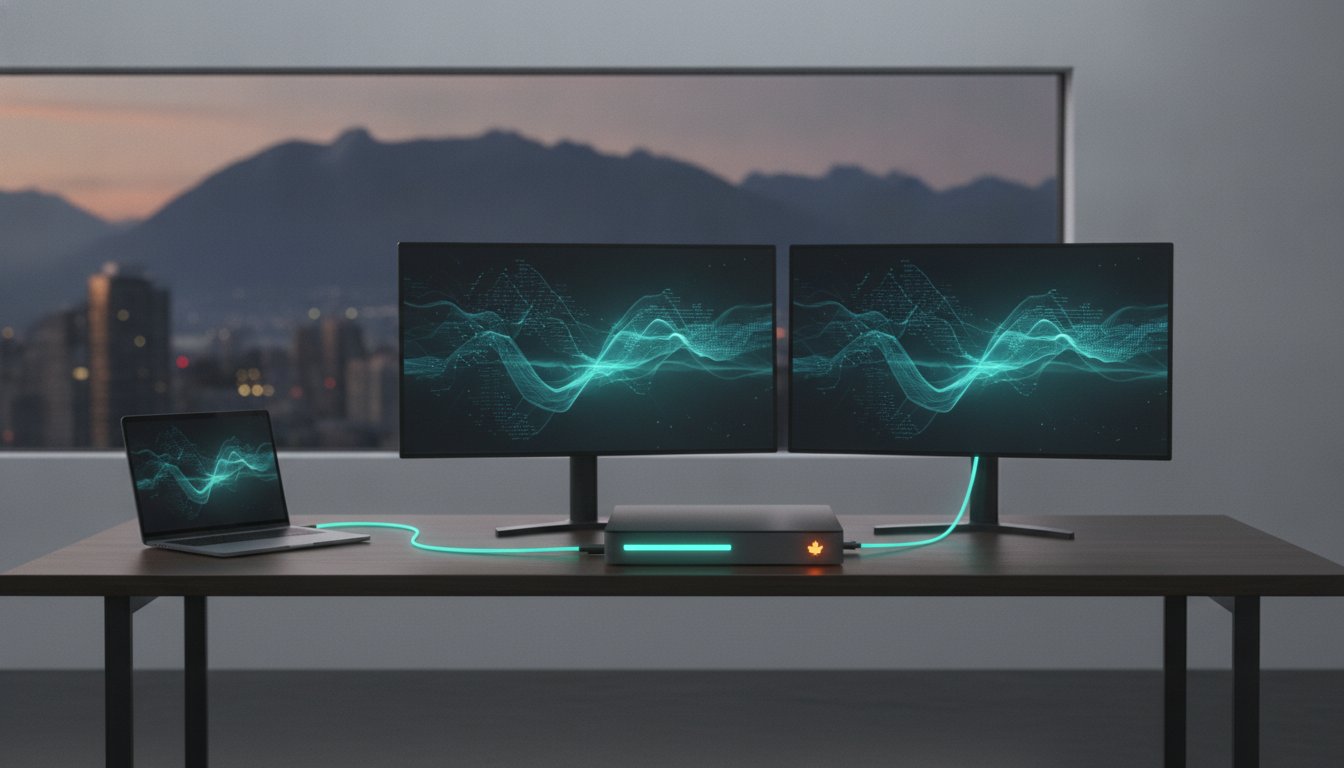
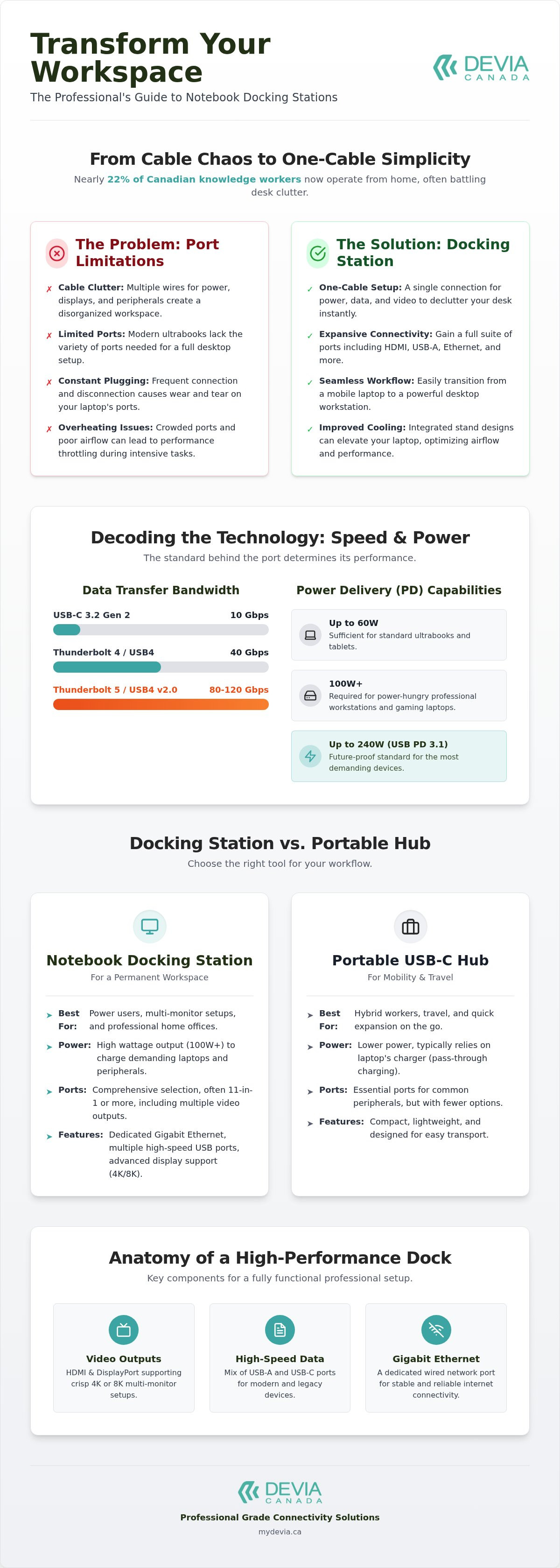
Nearly 22% of Canadian knowledge workers now operate fully from home. Most still battle the daily chaos of cable clutter and limited port availability. You likely struggle to connect legacy USB-A peripherals or face overheating issues during intensive tasks. High-performance notebook docking stations resolve these hardware bottlenecks by consolidating your connectivity into a single, reliable hub. This approach prioritizes utility and desk organization.
A professional workspace requires more than just a laptop. You need a system that offers fast data transfer, consistent charging, and seamless multi-monitor support. This guide explains how to transform your portable device into a powerful workstation using advanced port configurations. We will preview the impact of Thunderbolt 5 and USB4 Version 2.0 technology on your daily productivity. You will learn to navigate 80 Gbps bandwidth capabilities and USB Power Delivery 3.1 standards. Discover how to organize your Canadian office for maximum technical efficiency and speed.
Key Takeaways
- Learn how to implement a one-cable setup to unify your peripherals and simplify your daily desk workflow.
- Master the technical differences between USB-C and Thunderbolt to ensure your hardware supports maximum data speeds and reliable power delivery.
- Identify whether portable hubs or permanent notebook docking stations best suit your specific professional requirements and workspace mobility.
- Discover practical steps for cable routing and ergonomic positioning to create a clean, organized Canadian home office.
- Explore how integrated stand designs optimize device cooling and airflow while providing comprehensive 11-in-1 port expansion.
What is a Notebook Docking Station and Why Do You Need One?
A notebook docking station serves as the central connectivity hub for your entire workspace. It acts as a bridge between your portable laptop and a full suite of desktop peripherals. Instead of connecting individual cables for power, monitors, and accessories every time you sit down, you use a single connection. This "one-cable" philosophy is the foundation of a modern, efficient desk setup. It simplifies your transition from mobile to stationary work while reducing physical wear on your laptop ports.
Modern ultrabooks and MacBooks are thinner than ever, but this portability comes at a cost. Manufacturers have removed most traditional ports to achieve these slim profiles. Many high-end devices now feature only two or three USB-C ports. This creates a "port gap" for professionals who need to connect legacy USB-A drives, wired keyboards, or multiple external displays. Notebook docking stations solve this problem by providing the expansive connectivity that modern hardware lacks. They transform a mobile device into a high-performance workstation without compromising on desk organization.
The benefits of a dedicated dock extend beyond simple port expansion. They improve productivity by enabling multi-monitor workflows and ensure device longevity by minimizing the constant plugging and unplugging of delicate internal connectors. For the Canadian professional, a reliable dock is a requirement for maintaining a high-performance home office.
The Evolution of Laptop Connectivity
Connectivity standards have moved from proprietary mechanical docks to universal solutions. Previously, business laptops required specific plastic bases that only worked with a single model line. Today, the industry has standardized around USB-C and Thunderbolt technology. This shift supports the Canadian hybrid work model, where 35% to 40% of knowledge workers move between different environments. You can now use the same docking station for various devices, making your hardware investment more versatile and future-proof.
Essential Components of a High-Quality Dock
A professional dock must handle high-bandwidth data and video signals simultaneously. It should offer a logical layout that keeps cables organized and out of sight. Look for these core components in a high-quality unit:
- Video Output: HDMI and DisplayPort connections that support 4K or 8K resolutions for crisp multi-monitor setups.
- Data Transfer: A mix of high-speed USB-A and USB-C ports to accommodate both modern and legacy peripherals.
- Network Reliability: A dedicated Gigabit Ethernet port to ensure stable video conferencing and fast file uploads.
- Audio Integration: 3.5mm jacks for headsets or speakers to keep your desk free of extra adapters.
By centralizing these connections, you create a cleaner workspace that encourages focus. A well-chosen dock provides the reliability needed for intensive professional tasks while keeping your hardware cool and accessible.
Understanding Technical Standards: USB-C, Thunderbolt, and Power Delivery
Technical specifications determine the actual performance of notebook docking stations. While many devices use the same USB-C connector, the underlying protocols vary significantly. USB-C 3.2 Gen 2 supports speeds up to 10 Gbps, which is sufficient for basic office tasks. Professionals requiring higher performance should look toward Thunderbolt 4 or the latest Thunderbolt 5 standards. Thunderbolt 5, officially announced by Intel, provides 80 Gbps of bi-directional bandwidth. It can even boost to 120 Gbps for high-end display configurations. These standards ensure your peripherals operate without lag or data bottlenecks.
Power Delivery (PD) is the second critical factor. A dock with PD pass-through allows you to charge your laptop using the same cable that handles your data. You must calculate your specific power requirements to avoid slow charging or battery drain. A 60W PD dock works for standard ultrabooks, but power-hungry workstations often require 100W or more. The current USB PD 3.1 specification now supports up to 240W, providing ample overhead for the most demanding Canadian professional setups.
The Importance of Fast Charging Smart Hubs
Smart hubs manage the complex task of power distribution. They must balance the energy sent to your laptop with the power required by connected SSDs, keyboards, and mobile devices. Modern docking stations include safety protocols to prevent overcharging and overheating. This efficiency extends to mobile devices, allowing you to maintain peak battery health on your iPhone 17 while it charges via the dock. Choosing a dock with a durable metal housing helps dissipate heat during high-wattage charging, a feature found in the Devia Leopard Series.
Display Standards: 4K, Dual Monitors, and Refresh Rates
High-resolution displays require massive bandwidth. If you plan to run dual 4K monitors, your dock must support at least HDMI 2.0 or DisplayPort 1.4. For those using 8K screens or high-refresh-rate gaming monitors, HDMI 2.1 is necessary to handle the increased data load. A high-quality dock ensures that adding a second or third screen doesn't result in flickering or reduced image quality. This multi-monitor support is essential for creative professionals and analysts who need to visualize large datasets across an expanded digital canvas.
- HDMI 2.0: Supports 4K at 60Hz. Standard for most office work.
- HDMI 2.1: Supports 4K at 120Hz or 8K at 60Hz. Ideal for video editing.
- DisplayPort 1.4: Allows for daisy-chaining multiple monitors through a single port.
Docking Stations vs. USB-C Hubs: Which Setup Fits Your Workflow?
Choosing between a portable hub and a dedicated docking station depends on where you work. A USB-C hub is typically a small, lightweight adapter that draws power directly from your laptop. These are ideal for travelers who need to connect a single monitor or a thumb drive while on the move. Notebook docking stations are larger, more robust units designed to remain on your desk. They often feature their own power supply, allowing them to charge your laptop and multiple high-draw peripherals simultaneously without straining your system's battery. For most Canadian professionals, the goal is a "docked" experience where one cable handles everything.
A hybrid approach has emerged in 2026. High-performance 11-in-1 hubs now provide the port density of a traditional dock with the compact form factor of a hub. These units are cost-effective for users who want a permanent desk setup but still need the flexibility to pack their connectivity into a laptop bag. Investing in an 11-in-1 solution eliminates the need to buy separate adapters for different tasks. It consolidates your Ethernet, video, and data needs into a single piece of hardware, providing the best return on investment for a professional workspace.
Portability vs. Stability
Travelers often prioritize slim hubs for their MacBook or iPad to save space in a bag. While convenient, these small hubs can become unstable when multiple heavy cables are attached. A stand-integrated dock provides a weighted, secure base that prevents your laptop from sliding or your cables from tangling. This stability is vital for a home office where you want a consistent, reliable connection. As your tech ecosystem grows to include external drives and specialized input devices, a stationary dock scales more effectively than a basic travel hub.
The Multi-Port Advantage
The "11-in-1" configuration has become the professional standard because it covers every common connectivity gap. While basic hubs might only offer HDMI and a couple of USB ports, a comprehensive dock includes often-overlooked essentials. These features are critical for maintaining a high-performance workflow:
- SD/TF Card Readers: Essential for photographers and creators who need to transfer 4K video or high-resolution images quickly.
- Gigabit Ethernet: Provides a stable, wired internet connection that outperforms Wi-Fi during critical video calls or large file transfers.
- Integrated Cooling: Metal-housed docks, such as the Leopard Series, act as a heat sink to keep internal components cool during heavy data loads.
Future-proofing your setup means choosing a device that can handle the peripherals you haven't bought yet. A dock with 11 ports ensures you won't run out of space as you add more monitors or specialized hardware to your Canadian home office.
How to Organize the Ultimate Canadian Home Office
Organizing a workspace is about more than aesthetics; it's about reducing friction in your daily routine. Professional notebook docking stations act as the anchor for this organization, transforming a cluttered desk into a streamlined command centre. A well-ordered environment minimizes distractions and allows you to focus on high-priority tasks. Follow these four steps to optimize your setup for maximum efficiency.
Step 1: Elevate for Ergonomics. Position your laptop on a stand so the top of the screen is at eye level. This prevents the neck strain and slouching common during long hours of remote work. Step 2: Execute Cable Management. Route all peripheral cables behind the dock. This hides the "nest" of wires and keeps your primary desk surface clear for documents or input devices. Step 3: Centralize Power. Use the dock's high-wattage ports to charge your laptop, phone, and Apple Watch simultaneously. This eliminates the need for multiple wall adapters. Step 4: Align Your Displays. Place your external monitors at the same height as your elevated laptop screen to create a seamless dual or triple-screen workflow. This reduces eye fatigue when moving your gaze between different applications.
Ergonomics and Efficiency
A laptop stand is a requirement for preventing long-term physical fatigue. By raising the device, you open your chest and improve your posture. Choose a dock with a Metal Grey finish to match the premium aesthetic of modern notebooks. This creates a cohesive look that feels professional and intentional. A "plug-and-play" environment means you can connect or disconnect your entire setup in seconds, which is vital for the 35% to 40% of Canadians currently working in hybrid models.
Integrating the Apple Ecosystem
Modern docking stations must handle the specific data and charging requirements of the Apple ecosystem. Use your dock to sync iPads and iPhones at high speeds while maintaining a clean desk. For users with multiple accessories, adding a multi-device charging station alongside your laptop dock ensures every piece of tech is ready for the day. These setups are fully compatible with current macOS and Windows updates, providing a reliable connection regardless of your operating system. To start building your high-performance workspace, browse our selection of professional notebook docking stations today.
By following these organizational steps, you create a workspace that supports your health and your productivity. A clean desk reflects a disciplined approach to work, ensuring you have the tools you need exactly where you need them.
The Devia Leopard Series: A New Standard for Notebook Docking
The DEVIA USB C Laptop Docking Station Leopard Series (11 in 1) represents a shift in workspace architecture. It moves beyond simple port expansion by integrating a robust laptop stand directly into the hub's chassis. This Metal Grey unit is built from high-grade materials that match the build quality of modern professional notebooks. For Canadian professionals, this design addresses two problems at once: the need for more ports and the requirement for better ergonomics. It's the preferred choice for those who value a systematic approach to their notebook docking stations.
Heat management is a critical factor for device longevity. Standard hubs often trap heat against the desk surface or the laptop body. The Leopard Series uses its integrated stand design to elevate the laptop, significantly improving airflow and cooling during resource-heavy tasks. This prevents thermal throttling and ensures your system maintains peak performance throughout the workday. The metal construction acts as a passive heat sink, further protecting the internal circuitry from overheating during fast-charging sessions.
The 11-in-1 Connectivity Suite
The Leopard Series provides a comprehensive array of ports to handle any professional requirement. It includes three USB-A ports for legacy devices and a high-speed USB-C port with 100W Power Delivery. Video output is handled by both HDMI and VGA ports, supporting 4K resolutions for crystal-clear external displays. The addition of a Gigabit Ethernet port, SD/TF card readers, and a 3.5mm audio jack makes it a truly universal hub.
Ergonomics are built into the physical structure. The angled stand positions your laptop's built-in camera at a better height for video calls. It also creates a more comfortable typing angle, reducing wrist strain during long sessions. This combination of physical utility and technical expansion sets a new standard for professional connectivity.
Reliability and Performance in 2026
Internal smart chip technology manages power and data streams across all 11 ports simultaneously. This ensures that your fast-charging phone doesn't interfere with your external drive's data transfer speeds. The metal construction is specifically tested for durability, resisting the wear and tear of a busy Canadian professional environment. Every port is positioned for easy access, allowing you to maintain a clean, organized desk without sacrificing functionality.
You don't have to settle for a cluttered desk or an overheating laptop. Choosing a high-performance hub allows you to maintain an organized, efficient workspace that scales with your needs. Upgrade your workstation with the Leopard Series 11-in-1 Docking Station to experience the benefits of a fully integrated desk solution. It's time to realize the full potential of your portable device with a professional-grade notebook docking stations setup.
Future-Proof Your Canadian Workspace
Building a high-performance office in 2026 requires a focus on both technical standards and physical organization. You've learned how Thunderbolt 5 and USB Power Delivery 3.1 provide the bandwidth and charging capacity needed for intensive professional tasks. Selecting the right notebook docking stations is the most effective way to unify your peripherals while maintaining a clean, efficient desk. By integrating ergonomic stands with multi-port expansion, you protect your hardware and your health simultaneously.
The Leopard Series offers a systematic solution for the modern hybrid worker. It features 11-in-1 port expansion and a premium Metal Grey finish that complements your professional equipment. The integrated stand design ensures your laptop remains cool while providing a stable, eye-level display for video calls. This approach prioritizes utility and long-term reliability for your home office setup.
Don't let cable clutter or limited port availability hinder your output. It's time to create a workspace that matches your professional standards. Shop the Leopard Series 11-in-1 Docking Station at Devia Canada to optimize your productivity today. You have the tools to build a more organized and efficient environment.
Frequently Asked Questions
Can I use a notebook docking station with any laptop brand?
Most notebook docking stations are compatible with any brand that uses standard USB-C or Thunderbolt ports. They work seamlessly across Windows, macOS, and ChromeOS environments. You should verify your laptop's specific video output capabilities to ensure full monitor compatibility. High-quality docks use universal protocols to bridge the gap between different hardware ecosystems and brands.
Does a docking station charge my laptop while I work?
Yes, docking stations with Power Delivery (PD) will charge your laptop through the primary connection cable. You must use a dock that meets or exceeds your laptop's wattage requirements, typically 60W or 100W. This one-cable solution keeps your battery full while powering your monitors and accessories. It's an essential feature for maintaining a productive workstation throughout the day.
What is the difference between a USB-C hub and a docking station?
A USB-C hub is a compact, portable tool designed for quick connections during travel. Professional notebook docking stations are stationary units built for permanent desk integration. Docks usually feature their own power supply and offer higher bandwidth for multiple displays and stable Ethernet. They provide the reliability needed for a full-time Canadian home office setup.
Will a docking station support two 4K monitors at the same time?
Support for dual 4K monitors depends on the dock's video standards and your laptop's graphics capabilities. Docks equipped with HDMI 2.0 or DisplayPort 1.4 can typically handle two 4K screens at a 60Hz refresh rate. This setup is ideal for professionals who need an expanded digital canvas for complex tasks. Check your device specifications to confirm support for multi-stream transport (MST).
Do I need to install drivers to use the Devia Leopard Series docking station?
The Devia Leopard Series is a plug-and-play device that doesn't require manual driver installation. It utilizes native operating system drivers to manage its 11 ports immediately upon connection. This is particularly useful for corporate users who don't have administrative rights to install software. You can realize a fully functional workspace in seconds without technical troubleshooting.
Is it safe to leave my laptop connected to a docking station overnight?
It is entirely safe to leave your laptop connected to a professional dock overnight. Modern hardware includes smart charging circuitry that prevents overcharging by stopping the current once the battery is full. High-grade metal housings also assist with heat dissipation while the system is idle. This ensures your device is charged and ready for use every morning.
How do I ensure my docking station provides enough power for my peripherals?
You should use a docking station with an integrated smart hub that manages power distribution. If you connect high-draw peripherals like external SSDs or mechanical keyboards, ensure your dock is connected to a high-wattage power source. This prevents peripheral disconnects and ensures stable data transfer speeds across all active ports. Proper power management is key to a reliable professional environment.