

How to Set Up a Laptop Stand with USB Hub for Maximum Productivity
2026 Jul 1st
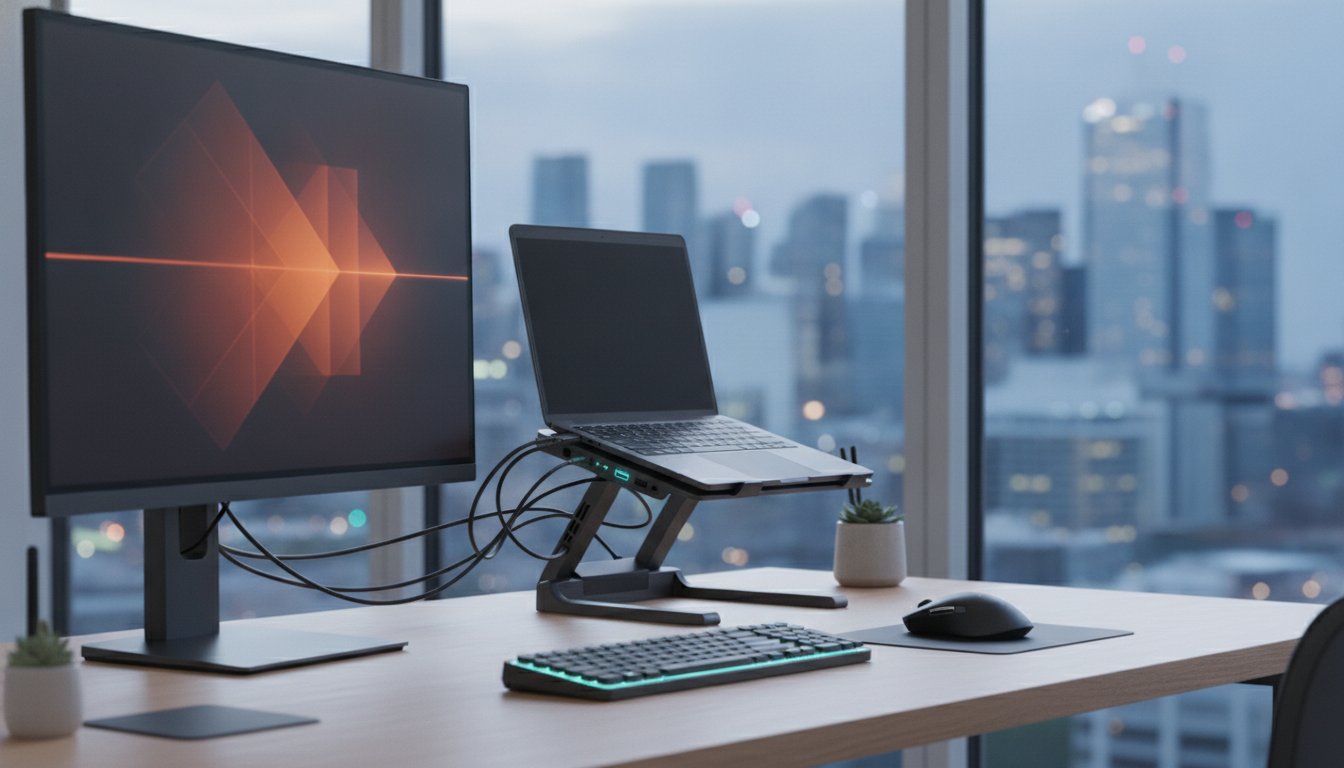
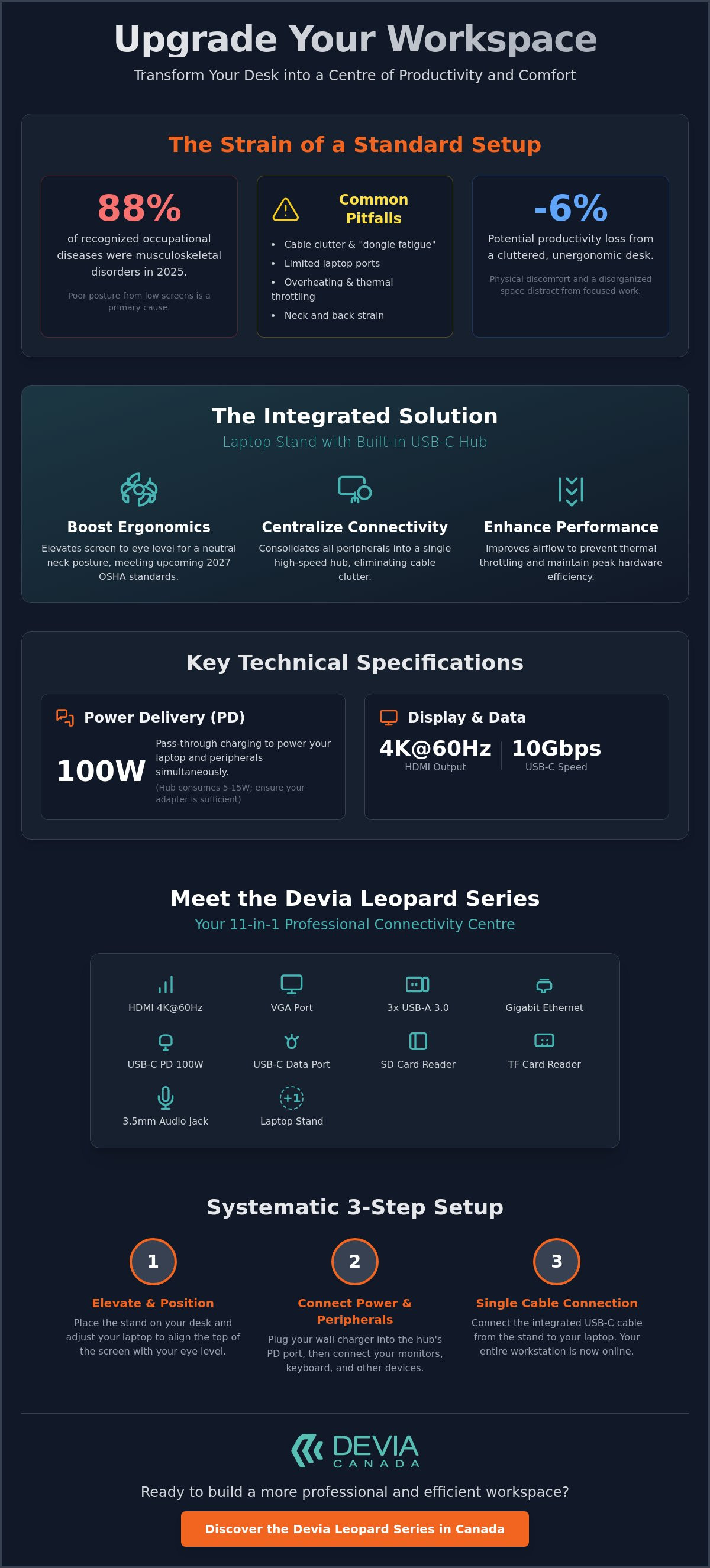
Musculoskeletal disorders accounted for nearly 88% of recognized occupational diseases in 2025. If you spend your workdays slouching over a screen while wrestling with a mess of tangled cables, you're likely feeling the physical and mental toll. Most standard desks simply don't offer the height required for a neutral posture or the connectivity needed for modern peripherals. Integrating a laptop stand with usb hub into your workspace is a functional, dual-purpose solution that addresses both ergonomics and port scarcity in a single, efficient chassis.
We agree that a cluttered workspace leads to a cluttered mind and unnecessary physical strain. This guide will show you how to transform your desk into an efficient, professional centre that can boost productivity by up to 6%. You'll learn how to organize your setup to meet upcoming 2027 OSHA ergonomic standards while utilizing high-speed USB 5Gbps or 10Gbps connections for seamless data transfer. We'll walk through the technical steps to improve your laptop's cooling, manage your cables, and ensure all your devices stay connected through a single, reliable hub.
Key Takeaways
- Elevate your screen to eye level to maintain a neutral neck position and reduce the risk of long-term physical strain.
- Learn how a laptop stand with usb hub solves "dongle fatigue" by consolidating your peripherals into one high-speed Type-C docking station.
- Master the technical specifications of USB-C Power Delivery to keep your devices charged while utilizing external HDMI monitors.
- Follow a systematic setup process to organize your workstation for improved hardware cooling and professional cable management.
- Discover how the 11-in-1 Devia Leopard Series provides a comprehensive connectivity centre for a more efficient daily workflow.
What is a Laptop Stand with USB Hub and Why Do You Need One?
A laptop stand with usb hub is a specialized hybrid peripheral designed to optimize a modern workstation. It functions as an ergonomic riser that elevates your screen while simultaneously acting as a multi-port docking station. This combination creates a centralized command centre for your digital workspace. Rather than managing a separate stand and a dangling collection of adapters, this single unit provides a stable base and consistent connectivity. It's a high-performance tool for professionals who require high-speed data distribution without sacrificing desk space or physical comfort. It's a productivity engine for the modern era.
The Problem with Standard Laptop Setups
Working directly on a laptop at a desk often leads to significant physical strain. Users typically slouch to view the screen, which is positioned well below natural eye level. This posture contributes to neck pain and long-term issues like Cervical Spondylosis. Beyond ergonomics, modern slim laptops prioritize portability over ports. Most lack enough inputs for external monitors, wired keyboards, or high-speed ethernet. Additionally, placing a laptop flat on a surface restricts airflow. This can cause thermal throttling, where the computer slows down to manage heat. This reduces the longevity of your hardware. Your laptop needs to breathe to perform.
The Integrated Solution: Stand Meets Hub
The integrated design solves these issues by centralizing all connections into a single chassis. By elevating the device, you improve the colour and clarity of your workflow because your primary display aligns with your natural line of sight. This setup eliminates "dongle fatigue," which is the frustration of searching for specific adapters for every new peripheral. For Canadian home offices or compact study nooks, this space-saving approach is invaluable. It keeps the desk surface clear of cable clutter. It provides a professional, modern aesthetic. Your laptop stays cool through improved passive ventilation. This ensures peak performance during demanding tasks. The metal-grey finish often used in these designs, such as in the Leopard Series, offers a premium look that fits any professional environment. Efficiency is the priority here. Everything you need connects through one cable. Your workspace remains organized. Your body stays aligned. It's the logical choice for a serious setup.
Key Technical Specifications for a Type C Docking Station
The internal hardware of a laptop stand with usb hub determines your setup's overall efficiency. It acts as the bridge between your laptop's single Type-C port and your entire peripheral ecosystem. High-performance hubs now utilize USB 10Gbps standards, allowing for rapid file transfers that were once only possible with internal drives. For professionals handling large 4K video files or massive datasets, these speeds are non-negotiable. When selecting a laptop stand with usb hub, prioritize the port layout that matches your specific workflow to avoid future bottlenecks.
Power Delivery and Charging Protocols
Power Delivery (PD) pass-through is a critical feature for any workstation. It allows you to connect your laptop's wall charger directly to the stand, which then feeds power to the laptop through the primary connection cable. Most modern hubs support up to 100W PD. You must ensure your wall adapter provides enough wattage to cover both the hub's internal operations and the laptop's charging requirements. Hubs often consume 5W to 15W themselves. If you use a low-wattage charger, your battery might drain even while plugged in. Look for integrated safety protocols like over-current and short-circuit protection to safeguard your expensive hardware.
Display and Data Connectivity
Connecting an external monitor is the fastest way to increase screen real estate. High-quality stands offer HDMI ports supporting 4K resolution at 60Hz, providing the fluid motion required for detailed design work or video editing. Adhering to Ergonomic guidelines from OSHA requires precise monitor placement to avoid neck strain, making reliable display outputs essential. This allows you to position your primary and secondary screens at the correct height and distance for long-term health.
Stable internet is another priority. While Wi-Fi is convenient, a dedicated RJ45 Ethernet port provides the consistent, high-speed Canadian internet connection needed for lag-free video conferencing. Additionally, integrated SD and TF card readers are vital for content creators. These slots allow you to offload footage directly from a camera without searching for a separate reader. For those seeking a comprehensive solution with these exact specs, the Devia Leopard Series offers an 11-in-1 layout that covers every professional requirement.
Organizing your peripherals involves balancing legacy USB-A devices, like older mice or thumb drives, with modern USB-C tools. A well-designed hub provides a mix of both. This ensures you don't have to replace functional older hardware just to fit a new laptop. It's about maximizing utility while maintaining a clean, professional aesthetic. Your docking station should simplify your life, not add more complexity to your desk.
Ergonomic Benefits of Elevating Your Workspace
Elevating your device with a laptop stand with usb hub is a fundamental step in creating a healthy workstation. Standard laptop use forces the user to look downward, which places excessive strain on the cervical spine. By using a riser, you can align the top third of your screen with your natural eye level. This simple adjustment encourages a neutral neck position and significantly reduces the risk of developing Cervical Spondylosis. According to research on University laptop ergonomics, using a stand in conjunction with an external keyboard is the only way to achieve a truly ergonomic setup. When the laptop is raised, your hands should remain at elbow height on a flat surface to prevent wrist strain and carpal tunnel issues. This creates a professional centre for your daily tasks.
Posture Correction and Long-Term Health
"Tech Neck" is a growing concern for Canadian professionals who spend eight or more hours a day at a desk. This condition results from the repetitive stress of leaning forward to read a screen that is too low. An adjustable stand allows you to customize the height and angle of your device to suit your specific torso length and chair height. This flexibility is essential for maintaining a healthy posture throughout the day. By combining a physical riser with a high-performance docking station for laptop, you create a desktop-like experience. You gain the benefits of a full-sized monitor and peripheral setup while keeping your primary device at the optimal viewing angle. It's a systematic approach to long-term physical wellness that helps you organize your workflow more effectively.
Thermal Management and Device Longevity
A laptop stand with usb hub does more than just protect your body; it protects your hardware. Most laptops draw in cool air from the bottom and exhaust heat through the back or sides. When a device sits flat on a desk, airflow is restricted, leading to high internal temperatures. This often results in thermal throttling, where the CPU intentionally slows down to prevent damage. Metal stands, typically constructed from aluminum or high-grade alloys, facilitate passive cooling by acting as a heat sink. This material naturally conducts heat away from the laptop chassis. By elevating the device, you allow air to circulate freely around the entire base. This prevents internal fans from overworking and reduces the accumulation of dust inside the cooling fins. Maintaining lower operating temperatures extends the lifespan of your battery and internal components. You ensure consistent performance during resource-intensive tasks. A cool laptop is a fast laptop.
Step-by-Step: Setting Up Your 11-in-1 Laptop Stand
Setting up a laptop stand with usb hub requires a methodical approach to ensure both structural stability and optimal data throughput. Start by placing the stand on a flat, stable surface. Avoid uneven desks that might cause wobbling during typing or device interaction. Most 11-in-1 stands utilize a folding or dual-hinge mechanism; ensure the hinges are fully locked or the tension is adjusted to support your laptop's specific weight. A 16-inch workstation requires more resistance than a 13-inch ultraportable to maintain a steady position. Once the physical structure is secure, identify your laptop’s most capable USB-C port. Not all ports are created equal. Look for the Thunderbolt or DisplayPort (DP) icon next to the port to ensure it supports video output and high-speed data. Connecting the primary cable to a sub-optimal port will limit your external monitor resolution or data transfer speeds.
Initial Hardware Installation
Power management is the first technical step. Plug your PD (Power Delivery) wall charger into the designated USB-C input on the hub before connecting the stand to your laptop. This ensures the hub has sufficient current to initialize all 11 ports simultaneously without drawing too much from the laptop battery. After the power is connected, attach the primary USB-C cable to your device. You can verify the connection status through your system settings or device manager. On a Mac, check the System Report under USB; on Windows, look for "USB Billboard Device" or specific hub controllers in the Device Manager list. This confirmation ensures the hardware is communicating correctly before you begin plugging in peripherals.
Optimizing Your Cable Management
Effective cable management transforms a cluttered desk into a professional centre of productivity. Use the stand’s structural frame to route cables behind the desk surface. This hides the "octopus" of wires from view. Prioritize your high-bandwidth connections. External 4K monitors and hard drive arrays should occupy the primary HDMI and USB 3.0 ports. Lower-priority tools, like wireless mouse dongles or printers, can use the remaining USB 2.0 or legacy ports. If you are unsure which port to use for your specific devices, consult a usb c hub guide to understand specific bandwidth limitations. This prevents data bottlenecks when multiple devices are active at once.
Finally, test each connection individually. Insert an SD card to check the reader and open a browser to verify the RJ45 Ethernet speed. This systematic verification prevents mid-day technical failures during important meetings. For those ready to upgrade their workspace with professional-grade hardware, you can shop the Devia Leopard Series for reliable, multi-port solutions. Proper organization today leads to seamless performance tomorrow.
The Devia Leopard Series: A Professional Canadian Choice
The DEVIA USB C Laptop Docking Station Leopard Series (11 in 1) Multi-Port Type-C Fast Charging Smart Hub & Stand represents the pinnacle of workstation integration. It is not just a riser; it is a comprehensive connectivity hub housed in a premium Metal Grey chassis. This specific laptop stand with usb hub is designed to match the aesthetic of modern MacBooks and high-end PCs while providing the structural integrity required for heavy-duty use. For Canadian professionals, this unit eliminates the need for multiple separate adapters. It centralizes your entire digital ecosystem into one robust, foldable device. It's a high-performance tool that prioritizes utility over unnecessary fluff.
Leopard Series 11-in-1 Port Configuration
The port density of the Leopard Series is engineered for total connectivity. It features dual HDMI ports and a VGA output, allowing for versatile multi-monitor configurations across different display technologies. High-speed USB 3.0 ports ensure that data-heavy peripherals and external drives operate at peak efficiency. Unlike many budget alternatives, this hub includes a 3.5mm audio jack for dedicated sound output. This is essential for clear communication during video conferences or for high-quality audio editing. Additionally, the hub supports fast charging protocols. This allows you to power up smartphones or tablets directly from the stand while you focus on your primary screen. It's a systematic approach to power and data management.
Durability and Design Excellence
Construction quality is a priority for the Leopard Series. The high-strength metal frame is built to support laptops up to 17 inches without flexing or instability. This makes it an ideal choice for power users with large mobile workstations. Despite its strength, the stand features a foldable design. This is perfect for Canadian professionals who navigate a hybrid work schedule between home offices and corporate centres. It packs flat for easy transport in a standard laptop bag. Transitioning to a docking station laptop setup is the ultimate productivity upgrade for 2026. It combines the ergonomic benefits discussed earlier with the technical power of an 11-in-1 hub. For those using Apple hardware, exploring specialized macbook docking station options ensures perfect compatibility with macOS features. The Leopard Series provides a reliable, all-in-one solution that prioritizes utility and professional design. It's the logical conclusion for anyone looking to optimize their workspace.
Elevate Your Professional Performance
Ready to optimize your daily productivity? Upgrade your workspace with the Devia Leopard Series 11-in-1 Docking Station & Stand. This professional solution features a premium Metal Grey finish, fast-charging Smart Hub technology, and 11-in-1 multi-port versatility to handle all your modern and legacy devices. We provide national Canadian shipping to help you reorganize your home or corporate office without delay. Take control of your workstation today for a more comfortable and productive tomorrow.
Frequently Asked Questions
Can I use a laptop stand with a USB hub for a MacBook Pro?
Yes, you can use a laptop stand with usb hub for any MacBook Pro equipped with USB-C or Thunderbolt ports. The hub functionality integrates seamlessly with macOS to provide external display support and high-speed data transfer. It is a reliable solution for Apple users who need to expand their limited port selection while maintaining a professional workstation centre and an ergonomic viewing angle.
Does the laptop stand with USB hub require an external power source?
The hub can operate using bus power from your laptop, but an external power source is recommended for full performance. Connecting your USB-C wall charger to the Power Delivery (PD) port ensures the stand provides enough current for all 11 ports while simultaneously charging your laptop battery. This prevents the hub from draining your computer's power during intensive data transfers or multi-monitor use.
Will this stand support a heavy 17-inch gaming laptop?
Yes, professional metal stands like the Devia Leopard Series are engineered to support heavy 17-inch gaming laptops. The high-strength metal construction and adjustable hinges provide the stability needed to prevent wobbling or slipping. You should ensure the stand's tension is tightened correctly to handle the specific weight of larger hardware. This ensures your high-performance device remains secure at any height or angle.
Can I connect two external monitors to a single USB-C hub stand?
You can connect two external monitors if your laptop stand with usb hub features dual video outputs. The 11-in-1 configuration typically includes dual HDMI or an HDMI and VGA combination to facilitate multi-monitor setups. Check your laptop's graphics card specifications to ensure it supports the combined resolution of multiple external displays through a single Type-C connection. This is essential for professional multitasking and expanded screen real estate.
Is the USB-C cable that connects to the laptop replaceable?
Most integrated hub stands feature a fixed, high-quality USB-C cable to ensure consistent data transmission and power delivery. This built-in design prevents the connection issues often associated with loose or third-party cables. If the cable is damaged, it generally cannot be swapped out easily. Proper cable management and careful handling are essential for the device's longevity. Always route the cable to avoid sharp bends or tension.
Do I need to install drivers for the 11-in-1 docking station to work?
No manual driver installation is required for the 11-in-1 docking station to function. It utilizes standard plug-and-play protocols that are natively supported by modern Windows, macOS, and ChromeOS systems. Once you connect the primary USB-C cable, your operating system will automatically recognize the hub, HDMI ports, and card readers within seconds. This allows you to organize your workspace and begin working immediately without technical delays.
Will the hub charge my phone while the laptop is turned off?
The hub will only charge your phone while the laptop is off if you have an external USB-C power adapter connected to the PD port. In this configuration, the stand acts as a standalone charging station. If the hub is only drawing power from the laptop's battery, charging will stop once the computer is fully shut down or enters a deep sleep mode. This ensures your mobile devices stay powered regardless of your laptop's status.
How does a metal stand improve my laptop’s performance?
A metal stand improves performance by facilitating passive cooling and increasing airflow around the laptop's chassis. Aluminum and other alloys act as heat sinks, drawing thermal energy away from the internal components. This prevents thermal throttling, allowing the CPU and GPU to maintain higher clock speeds during demanding tasks without overheating. It is a simple but effective way to protect your hardware investment and ensure consistent speed.