

How to Choose the Right Docking Station for Your Laptop in 2026
2026 Jun 22nd
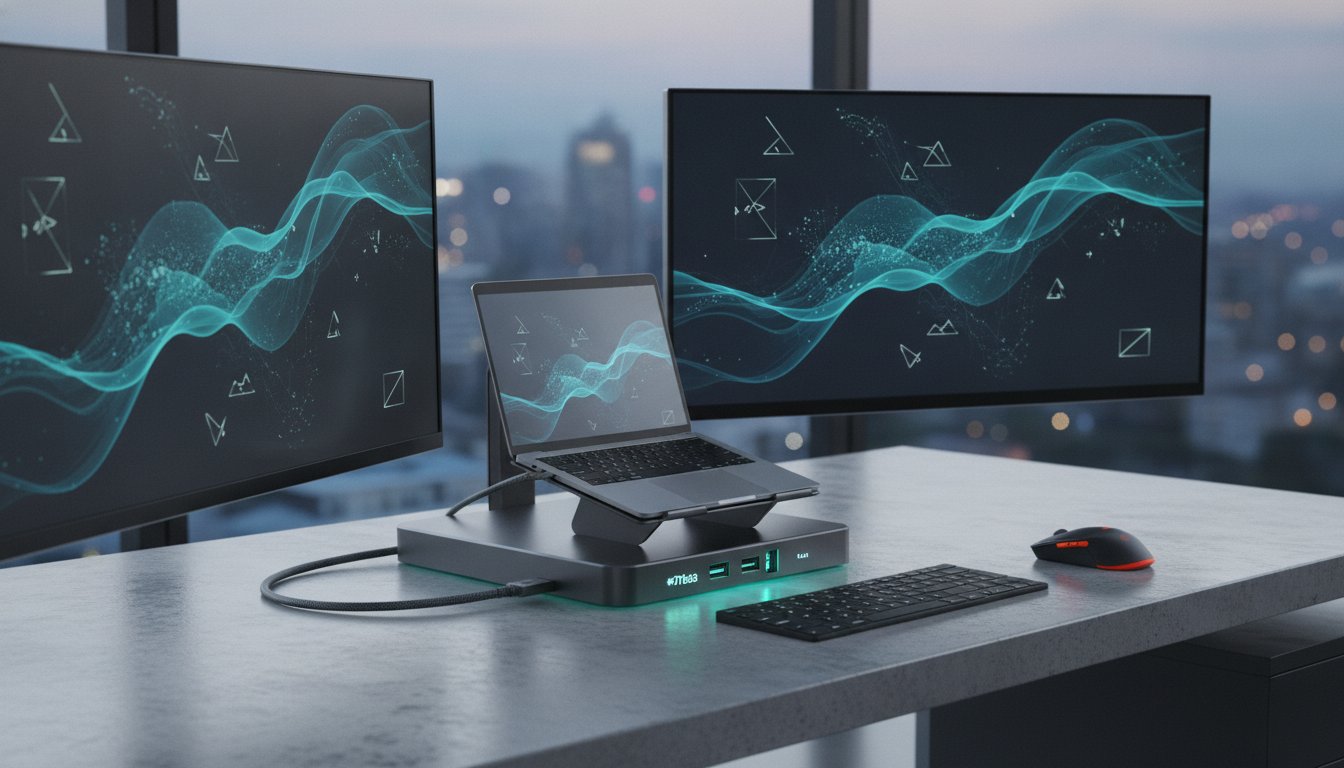
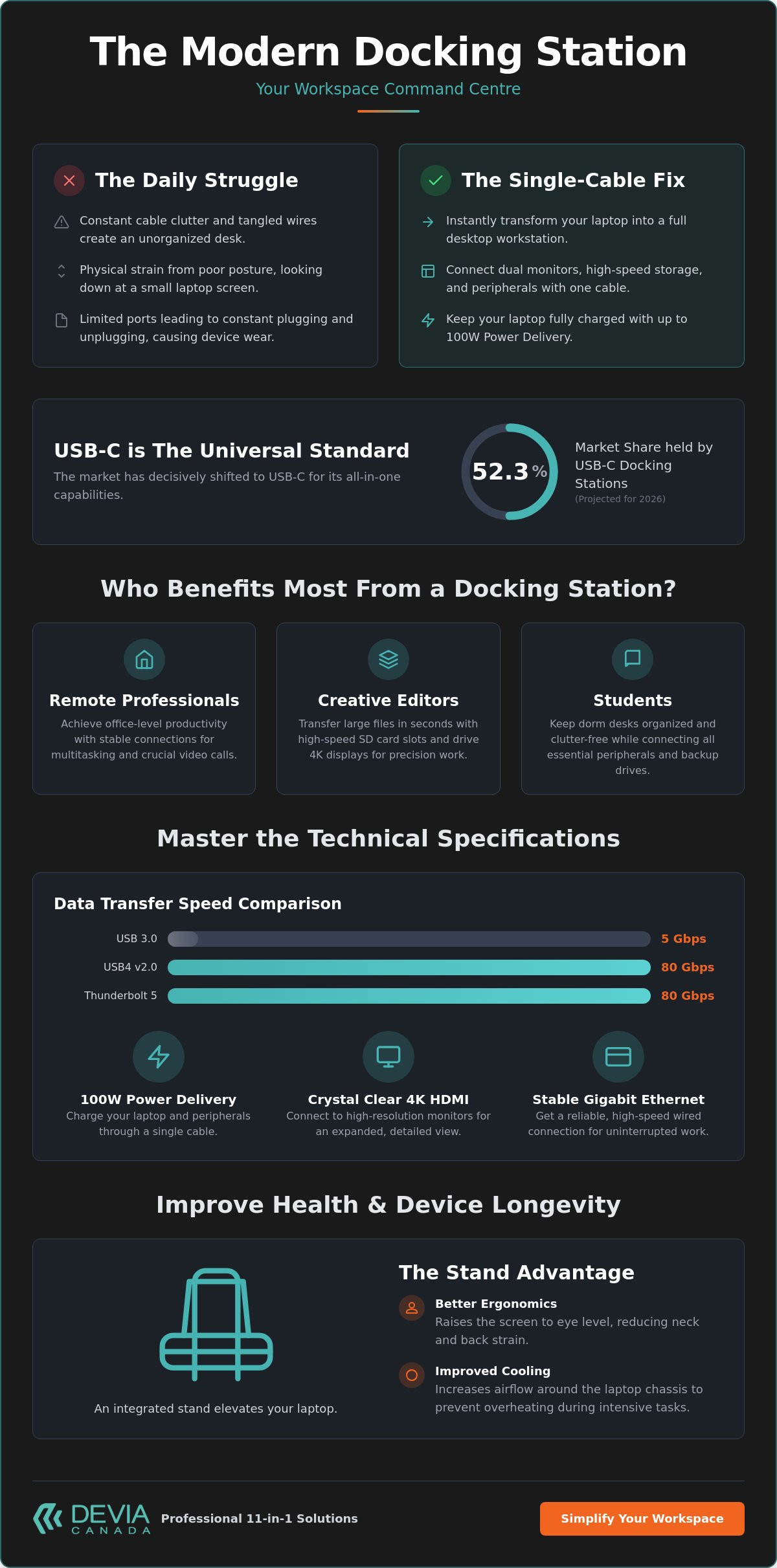
A modern docking station is the ergonomic centre of a professional workstation, not just a simple port expander. With over 50 percent of the market now favouring USB-C solutions, selecting the correct docking station for laptop use is the most effective way to eliminate cable clutter. You likely feel the daily frustration of limited ports and the physical strain of looking down at a small screen. It is a common struggle. Managing multiple monitors and high-speed peripherals shouldn't lead to an unorganized desk or a device that overheats during intensive tasks.
This article will help you master the technical specifications and ergonomic benefits of the latest hardware. We provide the functional details needed to achieve fast data transfer and reliable 100W pass-through charging. You will learn how to transition seamlessly between mobile and desktop modes. We preview the massive 80Gbps bandwidth of Thunderbolt 5, compare USB4 v2.0 standards, and explain how integrated stands improve both posture and cooling. Efficiency is a choice. We help you make it.
Key Takeaways
- Transform your workspace from a mobile setup to a full desktop-class environment using a single-cable hardware interface.
- Master technical specifications like Power Delivery and 4K HDMI to ensure your peripherals and laptop remain fully powered and connected.
- Optimize your health and device longevity by choosing a docking station for laptop use that doubles as an ergonomic stand for better airflow.
- Evaluate your specific connectivity needs to determine if a 5-port hub or an 11-port professional solution like the Devia Leopard Series fits your workflow.
- Simplify your cable management while realizing the benefits of high-speed data transfer and reliable Gigabit Ethernet.
What is a Laptop Docking Station and Why Do You Need One?
A docking station for laptop users is a hardware interface that bridges the gap between portability and professional performance. It allows you to connect multiple peripherals, including dual monitors, keyboards, and external storage, via a single cable. This setup transforms a standard laptop into a desktop-class workstation in seconds. For Canadian remote workers, this "one-cable" solution is the gold standard for productivity. It eliminates the need to manage various connectors every time you return to your desk. Efficiency is the goal. You want a system that works the moment you plug it in.
Connectivity standards have evolved rapidly. In 2026, USB-C docking stations hold a 52.3 percent market share. This dominance is due to their ability to provide video, data, and power over one connection. By centralizing your hardware, you realize significant benefits in cable management and port longevity. Constant plugging and unplugging can damage delicate internal pins on your laptop. A dedicated dock prevents this wear. It acts as the central hub for your entire digital environment, keeping your desk clean and your devices ready.
The Evolution of Connectivity
The market has shifted from proprietary mechanical docks to universal USB-C and Thunderbolt solutions. You can find more about the technical history and various types of What is a Laptop Docking Station to understand how these devices became universal. Modern units are no longer just port expanders. They are smart hubs. High-performance models, such as the DEVIA USB C Laptop Docking Station Leopard Series (11 in 1) Multi-Port Type-C Fast Charging Smart Hub & Stand – Metal Grey, now integrate power delivery and ergonomic stands into a single metal chassis. They handle 4K video, high-speed data, and 100W charging simultaneously without breaking a sweat.
Who Benefits Most from a Docking Station?
Specific professional workflows demand higher connectivity than a standard laptop chassis can provide. A multi-port hub ensures that every peripheral is ready the moment you sit down. Different users require different levels of support:
- Remote Professionals: They need dual-monitor support for multitasking and Gigabit Ethernet for stable video calls. A dock provides the reliability a Wi-Fi connection often lacks.
- Creative Editors: They require 4K HDMI output and high-speed SD card slots for large file transfers. Moving raw footage from a camera to a laptop is faster with dedicated ports.
- Students: They benefit from organized, small-footprint setups. A dock keeps dorm desks clear of clutter while providing enough ports for printers, mice, and external backup drives.
Choosing the right hardware means looking at your daily tasks. If you find yourself constantly reaching for adapters, it's time to upgrade. A professional docking station isn't just an accessory. It is the foundation of a modern, efficient workspace.
Technical Specifications: Understanding Ports and Power
Understanding the technical limits of your hardware is the first step toward building an efficient workstation. Many users confuse portable travel hubs with a dedicated docking station for laptop use. Travel hubs are often bus-powered, meaning they draw energy directly from your computer. This can lead to unstable connections for high-draw peripherals. In contrast, a stationary docking station uses pass-through charging or an external power supply to maintain consistent performance across all ports. Efficiency depends on matching your dock’s bandwidth to your workflow requirements.
Data transfer speeds vary significantly between port types. While older USB 3.0 ports offer 5Gbps, the latest USB4 v2.0 standards can reach 80Gbps. The USB-IF has simplified these names to "USB 10Gbps" or "USB 20Gbps" to help consumers identify performance at a glance. If you frequently move large files between external SSDs, prioritizing a dock with at least one USB-C 3.2 Gen 2 port is essential. For those seeking the absolute peak of performance in 2026, Thunderbolt 5 certification guarantees a minimum of 80Gbit/s bidirectional bandwidth.
Power Delivery (PD) Explained
Power Delivery (PD) 3.1 technology allows a single cable to charge your laptop while transmitting data. This eliminates the need for a bulky proprietary charging brick. Most professional docks, including the Leopard Series, support 100W pass-through charging. You must verify your laptop's specific wattage requirements. A high-performance 16-inch laptop may require more energy than a standard 13-inch ultrabook. Premium docks also include safety features like over-current and short-circuit protection to safeguard your internal battery. When building your workstation, it's helpful to explore multi-port smart hubs that prioritize both speed and safety.
Visual and Audio Connectivity
Video output is where many entry-level hubs fail. To achieve a smooth 4K resolution at 60Hz, your docking station for laptop must support the correct HDMI or DisplayPort version. A lower 30Hz refresh rate can cause noticeable lag during cursor movement or video playback. Audio is equally vital; a dedicated 3.5mm jack ensures zero-latency sound for professional headsets. While Wi-Fi has improved, a wired Gigabit Ethernet port remains the only way to guarantee a stable connection for high-stakes video conferencing. This hardware-first approach ensures your digital environment remains reliable under heavy loads.
Ergonomics and Heat Management: The Stand Advantage
A professional workspace requires more than just connectivity. While most users focus on port counts, the physical architecture of a docking station for laptop use is equally vital. Integrating a laptop stand into the docking hardware solves two of the most common productivity killers: physical strain and thermal throttling. This dual-purpose design creates a more efficient environment by addressing both user health and hardware longevity. It is a logical evolution for the modern Canadian office.
Neck and back pain often result from looking down at a screen for extended periods. An integrated stand raises the laptop display to a neutral eye level. This adjustment reduces the load on the cervical spine and prevents the "slump" associated with mobile working. By elevating the device, you eliminate the need for a separate monitor stand, saving valuable desk real estate while maintaining a professional posture. The aesthetic value of a metal grey finish further ensures the hardware blends seamlessly with modern laptop designs.
Thermal Management for High-Performance Laptops
Heat is the primary enemy of electronic performance. When a laptop sits flat on a desk, airflow is restricted, forcing internal fans to work harder. This often leads to thermal throttling, where the system slows down to prevent permanent damage. Elevating the chassis allows for maximum intake and exhaust efficiency. Premium models utilize metal alloy housings that provide passive cooling benefits by acting as a heat sink. Maintaining lower operating temperatures significantly extends the lifespan of sensitive internal laptop components.
Optimizing Your Workspace Layout
Organization is a functional requirement, not just an aesthetic choice. An integrated stand creates a fixed centre for your peripherals, minimizing the overall desk footprint. You avoid the clutter of a separate hub and stand combination, which often leads to a tangle of cables. The psychological benefits of an organized workstation are well-documented; a clean desk promotes focus and reduces daily stress. Comparing integrated stands versus separate combinations reveals that a unified solution is more stable and easier to manage.
- Metal Grey Finish: Matches modern professional hardware for a cohesive look.
- Space Efficiency: Combines two essential tools into one compact unit.
- Improved Stability: Metal construction prevents the laptop from wobbling during intensive use.
Choosing an integrated solution ensures that your hardware remains cool while your posture stays corrected. It is the most effective way to build a high-performance workstation that supports your long-term health and productivity.
Buying Guide: How to Choose Your Ideal Docking Station
Selecting a docking station for laptop use requires a systematic audit of your current and future hardware. You must first identify your primary connection type. While USB-C is universal, Thunderbolt 4 or Thunderbolt 5 ports offer higher bandwidth for data-heavy tasks. Next, count your peripherals. A standard setup often includes a keyboard, mouse, and external drive, but professional creators also require SD and TF slots for photography workflows. If you find yourself swapping cables frequently, an 11-port solution is the most efficient choice.
Monitor requirements dictate the necessary video output. A single 4K display at 60Hz is standard for most offices, but dual-display setups require docks with multiple HDMI or DisplayPort outputs. Consider your mobility. If you travel between home and a corporate office, a compact yet durable metal grey alloy dock is superior to bulky, plastic alternatives. It provides the necessary protection against the rigours of transit. Efficiency is about having the right tool for the right environment.
Compatibility Checklist for 2026
Hardware ecosystems are merging. Your docking station for laptop should also support the latest mobile devices, such as the iPhone 17 and iPad Pro, which utilize high-speed Type-C ports. Understanding the technical distinction between USB C hubs and docking stations is critical for ensuring your laptop receives enough power while managing data. Always verify OS support for Windows, macOS, and ChromeOS to avoid driver conflicts. You can browse compatible professional hubs to find a match for your specific operating system.
Future-Proofing Your Investment
A functional workstation must grow with your needs. Choosing an 11-in-1 solution provides longevity as you add more monitors or high-speed storage. Fast charging via Power Delivery (PD) is no longer optional. Ensure your dock supports at least 100W PD to accommodate future high-power laptops. High-grade aluminium or metal grey alloys offer better durability and heat dissipation than cheaper materials. This methodical approach ensures your investment remains relevant as technology standards continue to advance.
The Devia Leopard Series: A Professional 11-in-1 Solution
The DEVIA USB C Laptop Docking Station Leopard Series (11 in 1) Multi-Port Type-C Fast Charging Smart Hub & Stand – Metal Grey represents the peak of workstation efficiency. It isn't just an adapter. It is a comprehensive command centre for your desk. Canadian professionals trust Devia hardware because it prioritizes high-performance utility over unnecessary aesthetic fluff. This specific docking station for laptop use integrates 100W Power Delivery with a folding stand, solving the dual problems of connectivity and ergonomics established in previous sections. It is a systematic tool for a disciplined workspace.
Workplace productivity depends on reliable hardware. The Leopard Series provides a unified solution that handles power, data, and video through a single, durable cable. Its metal construction ensures it remains stable under the weight of larger laptops while providing the passive cooling benefits required for intensive tasks. By centralizing your connections, you eliminate the daily friction of managing multiple dongles. You gain a cleaner desk and a more focused mind.
Leopard Series Technical Highlights
This 11-in-1 solution provides an exhaustive list of ports to handle any professional workflow. It features 4K HDMI for crisp visual output and three USB 3.0 ports for high-speed peripherals. The inclusion of a Gigabit Ethernet port ensures reliable networking for secure corporate environments. Photographers and videographers benefit from dedicated SD and TF card readers, allowing for rapid file offloading without extra equipment. Everything you need is contained within a single Metal Grey chassis that complements modern professional laptops.
Setup is straightforward. It is a plug-and-play device that requires no complex driver installations or software. You realize immediate productivity gains the moment you connect the Type-C cable. The sleek design and high-grade materials reflect a commitment to quality that matches the standards of a global tech authority. It is designed for users who want to digest technical details at a glance and expect their hardware to perform without fail.
Building Your Complete Devia Ecosystem
A professional workstation is more than just a single hub; it is a coordinated system of devices designed for efficiency. You can optimize your Apple-specific hardware by exploring MacBook docking station solutions tailored for the latest macOS features. This ensures that every aspect of your desktop experience is seamless and predictable.
Integration extends beyond the desk. As you move between mobile and stationary modes, protecting your mobile devices remains a priority. Consider pairing your workstation with premium iPhone 17 cases to maintain a consistent professional aesthetic across your entire tech stack. Devia provides a systematic approach to consumer electronics, ensuring every component works together to support your professional life. Upgrade your workstation today and realize the benefits of a high-performance, organized desk.
Optimize Your Workspace for Peak Performance
Achieving a professional desk setup in 2026 requires a focus on both connectivity and physical ergonomics. You now understand that a docking station for laptop use is the foundation of this environment. By prioritizing 100W Power Delivery, 4K video output, and integrated thermal management, you ensure your hardware remains cool and your posture stays corrected. Selecting a solution with multi-port versatility provides the longevity needed to handle evolving peripherals while future-proofing your investment.
As a Canadian-focused tech retailer, we provide the tools necessary to eliminate cable clutter and maximize efficiency. You can Shop the Devia Leopard Series 11-in-1 Docking Station today to realize the benefits of a streamlined, high-performance workstation. We offer fast national shipping across Canada to help you upgrade your office without delay. Take control of your digital environment and build the professional desk you deserve.
Frequently Asked Questions
Does a docking station for a laptop charge the battery?
Yes, most modern docking stations charge your laptop battery if they support Power Delivery (PD) technology. This allows a single cable to transmit data and power simultaneously. You must ensure the dock's wattage output matches or exceeds your laptop's requirements. For example, a 100W PD port is sufficient for most professional ultrabooks and creative workstations. If the dock is bus-powered, it won't provide a charge.
Can I use a docking station with two monitors?
You can use a docking station with two monitors if the hardware includes multiple video outputs like HDMI or DisplayPort. Bandwidth is the primary limiting factor for resolution and refresh rates. A high-quality docking station for laptop use in 2026 should support dual 4K displays at 60Hz for a smooth visual experience. Always verify that your laptop's internal graphics card supports multiple external displays before connecting your hardware.
Is a docking station the same as a USB hub?
No, docking stations and USB hubs are designed for different use cases. USB hubs are typically portable, bus-powered devices meant to expand the number of available USB ports. Docking stations are stationary units that provide high-bandwidth connectivity for multiple monitors, Gigabit Ethernet, and high-speed charging. They are engineered to transform a portable device into a permanent, desktop-class workstation with a single connection.
Do docking stations work with all laptop brands?
Most docking stations work across different brands if they utilize universal standards like USB-C, USB4, or Thunderbolt. Compatibility is determined by the specific capabilities of your laptop's port. While a USB-C dock may physically fit any Type-C port, features like video output and charging require the port to support DisplayPort Alt Mode and Power Delivery. Always check your laptop's technical specifications to ensure full functionality.
Why is my laptop getting hot while connected to a docking station?
Laptops generate more heat when connected to a dock because they are often charging while driving multiple high-resolution displays and peripherals. This increased workload taxes the internal processor and battery. If the laptop sits flat on a desk, airflow to the intake vents is restricted. Using a docking station for laptop with an integrated stand elevates the device, which improves ventilation and helps prevent thermal throttling during intensive tasks.
Do I need to install drivers for my docking station?
Most modern docking stations are plug-and-play devices that don't require manual driver installations. Operating systems like Windows, macOS, and ChromeOS typically recognize the hardware and configure the ports automatically. However, some specialized docks that use DisplayLink technology for multiple monitors may require a specific driver to function correctly. You should check the manufacturer's website for the latest firmware updates to ensure the best performance.
Can I use a docking station with a closed laptop lid?
You can use a docking station with a closed lid by enabling "clamshell mode" in your laptop's power settings. This configuration requires an external monitor, keyboard, and mouse to be connected to the dock. You must adjust your settings to ensure the laptop doesn't enter sleep mode when the lid is closed. This setup is an efficient way to save desk space while maintaining a full desktop experience.
What is the benefit of a docking station with an integrated stand?
An integrated stand provides essential ergonomic and thermal advantages for your workspace. It raises the laptop screen to eye level, which helps reduce neck strain and improves your overall sitting posture. From a technical perspective, the elevation allows for better airflow around the laptop's cooling vents. This keeps the internal components at a lower temperature, ensuring your system maintains peak performance without slowing down due to heat.