

Docking Station Laptop Reference: The Professional Guide to 11-in-1 Connectivity
2026 Jun 29th
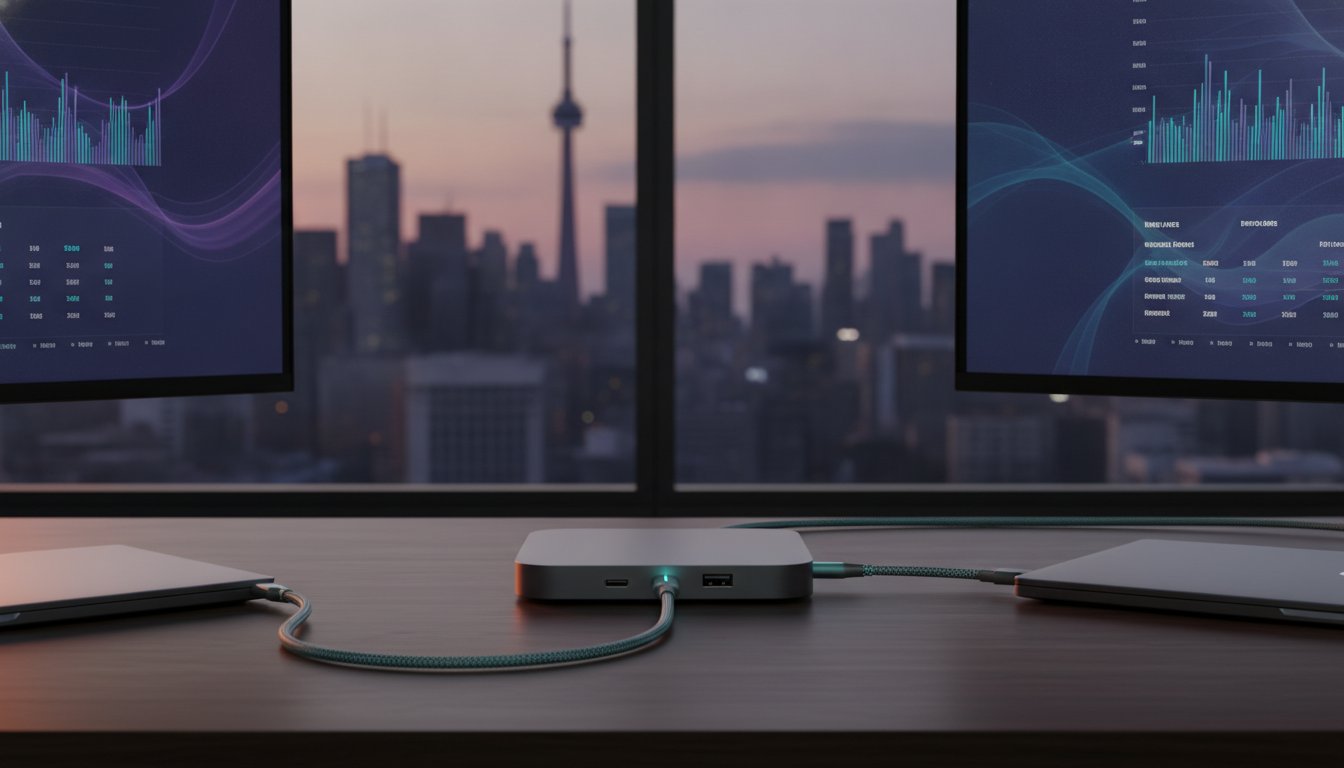
USB-C docking stations now command over 52% of the global market, yet many professionals still start their day untangling a mess of cables. It's a common frustration. You've invested in a powerful machine, but you're limited by a lack of ports for dual monitors and reliable internet. Finding the right docking station laptop solution shouldn't feel like a compromise between mobility and performance. You likely realize that a cluttered desk isn't just an eyesore; it's a functional bottleneck for your daily productivity.
This guide helps you master your workstation setup by exploring the technical standards of 11-in-1 connectivity. You'll learn how to achieve a single-cable solution that handles 100W power delivery, high-speed 4K video output, and stable Gigabit Ethernet. We'll examine the DEVIA Leopard Series as a professional reference point for multi-port hubs. From understanding the latest USB4 Version 2.0 speeds to optimizing your dual-monitor layout, this reference provides the clarity you need to build a modern, efficient centre for your digital work.
Key Takeaways
- Understand the evolution from proprietary mechanical docks to universal USB-C and Thunderbolt standards for streamlined device integration.
- Identify essential hardware specifications for 2026, including 4K HDMI support and integrated SD/TF card readers for creative professional workflows.
- Compare the functional benefits of portable hubs versus stationary solutions to realize the best fit for your specific workstation requirements.
- Optimize your docking station laptop configuration with professional cable management techniques to maintain a clean and highly efficient workspace.
- Evaluate the 11-in-1 Leopard Series as a professional standard for high-speed charging and durable aluminium construction in Metal Grey.
What is a Docking Station Laptop Setup?
A What is a Docking Station laptop setup acts as the central hub for your entire workstation. It's a hardware interface designed to expand a single laptop port into a comprehensive array of connections. This allows you to bridge the gap between a portable notebook and a high-performance desktop environment. In a Canadian home office, this device becomes the nerve centre of your productivity, connecting everything from external monitors to wired keyboards with one plug.
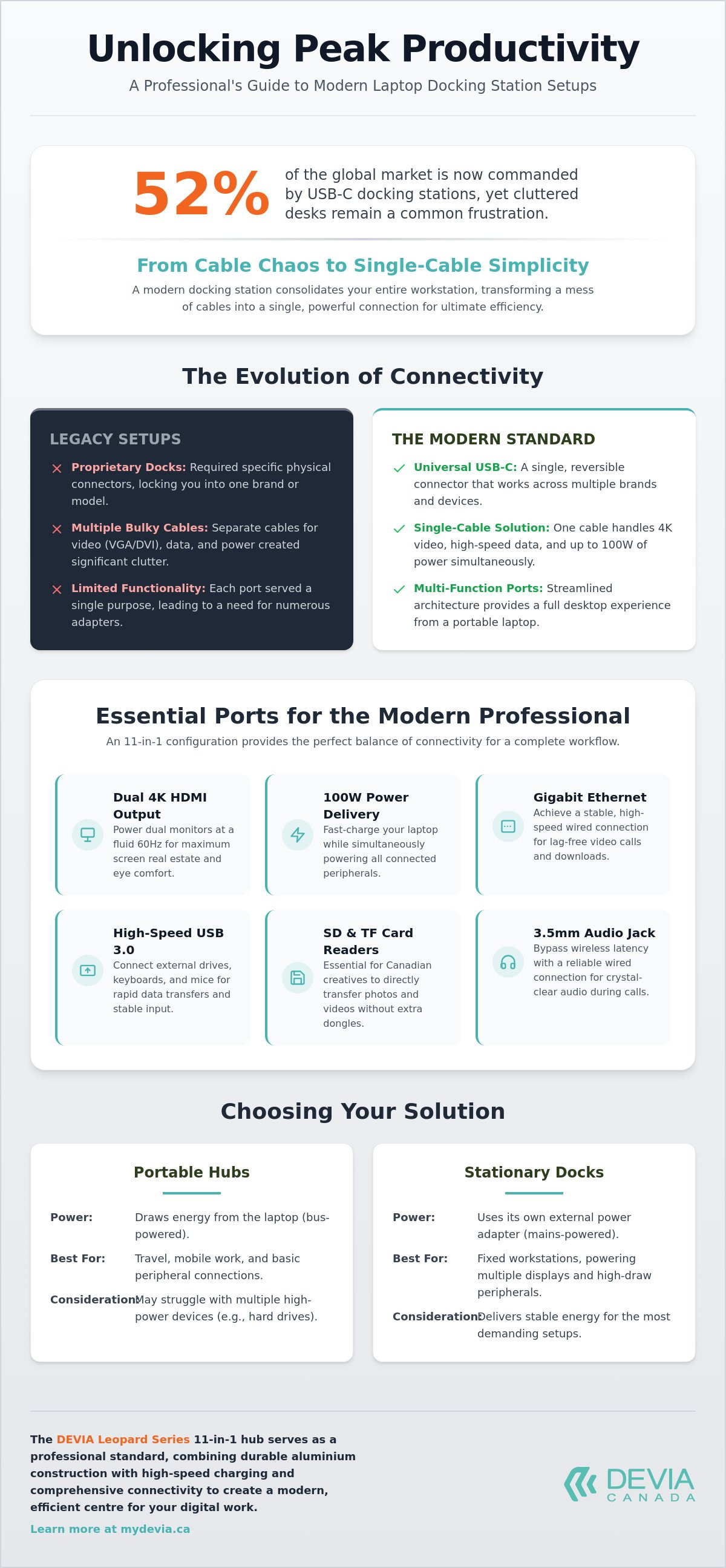
Modern connectivity has shifted away from the proprietary mechanical docks of the past. Older systems required specific physical connectors that only worked with one brand or model. Today, universal standards like USB-C and Thunderbolt dominate the market. Many users don't realize that this shift ensures your investment remains relevant even if you upgrade your laptop. You can now switch between different hardware brands without replacing your entire peripheral setup.
Understanding the power source is vital for performance. Bus-powered hubs draw energy directly from your laptop. These are excellent for travel but can struggle with high-power peripherals. Mains-powered docking stations use an external power adapter. These provide stable energy for multiple hard drives and high-resolution displays while simultaneously charging your laptop at speeds up to 100W.
The Evolution of Laptop Connectivity
The industry has moved away from bulky legacy ports like VGA and DVI toward streamlined Type-C architecture. This transition isn't just about aesthetics; it's about efficiency. A single cable now handles high-speed data, 4K video signals, and Power Delivery (PD) simultaneously. Universal compatibility is a significant advantage for mixed-device households where different users share the same workspace. It simplifies the user experience and reduces the need for a drawer full of specialized adapters.
Why Professionals Choose 11-in-1 Configurations
An 11-in-1 configuration represents the sweet spot for a professional docking station laptop setup. It provides enough variety to handle a complete workflow without unnecessary bulk. These units typically include dual HDMI ports, multiple USB-A slots, Gigabit Ethernet, and card readers. This allows for a more robust setup than basic 4-port or 6-port hubs can provide, and for those who need to source this level of hardware for temporary events, you can visit All Tech Rental to explore their professional hire options.
This robust approach to hardware connectivity is essential for any high-performance environment, much like how Apevie Simulators utilizes premium components to build custom, professional-grade racing simulators that demand absolute precision and reliability.
- Enhanced Visuals: Support for dual 4K displays increases screen real estate for complex tasks.
- Stable Networking: A wired Ethernet connection offers reliability that Wi-Fi can't match during video calls.
- Fast Transfers: High-speed USB 3.0 ports ensure rapid data movement for large files.
Beyond technical specs, this setup helps organize your workspace. By centralizing all connections into a single unit, you can hide cable clutter behind your monitor or under your stand. This creates a clean, focused environment that professional users value in a modern office.
Essential Ports and Specifications for 2026
High-resolution displays are the standard for modern professional workflows. In 2026, a 4K HDMI port is no longer an optional luxury but a technical necessity. Using an Essential Ports and Specifications reference helps you realize that 60Hz refresh rates are the professional benchmark for eye comfort. This ensures smooth cursor movement and crisp text rendering during long work sessions. For those managing complex spreadsheets or creative timelines, the clarity provided by a dedicated 4K output is indispensable.
Canadian creative professionals, such as photographers and videographers, rely on integrated SD and TF card readers to maintain their momentum. These slots allow for the direct transfer of large RAW files and high-bitrate video without the need for additional dongles. Having these ports built directly into your docking station laptop setup simplifies the ingest process. It minimizes the risk of losing small adapters while working in the field or at a shared studio centre.
Legacy peripherals continue to play a vital role in the professional environment. USB 3.0 ports provide the bandwidth required for external hard drives while offering stable connections for keyboards and mice. While wireless technology is convenient, a physical 3.5mm audio jack remains a critical feature. It bypasses the latency and signal interference common in dense office buildings or apartment complexes. This wired reliability ensures your audio remains clear during important client calls or intensive editing sessions.
Power Delivery (PD) and Fast Charging
Power Delivery is a protocol for high-speed charging over USB-C. A docking station laptop configuration featuring 100W PD allows you to charge your machine while simultaneously powering all connected peripherals. This is managed by Smart Hub technology. This internal logic prevents overcharging and regulates heat, protecting your laptop's battery health over the long term. You can explore the DEVIA Leopard Series to see how these power standards are integrated into a professional-grade hub.
Data Transfer and Networking
Reliable networking is a cornerstone of remote and hybrid work. Gigabit Ethernet (RJ45) provides a stable, low-latency connection that Wi-Fi simply cannot guarantee. This prevents dropped packets and lagging video during high-stakes conferencing. To ensure your home office is supported by a robust connection, you can learn more about internet service bundles from TekSavvy. In a professional setting, the consistency of a wired connection is always the preferred choice.
Data transfer speeds vary significantly across different USB generations. USB 3.0 offers 5Gbps, which is roughly ten times faster than the 480Mbps provided by USB 2.0. Having multiple high-speed ports allows for the simultaneous syncing of devices and rapid backup of local files. This multi-port efficiency is why professionals prioritize 11-in-1 configurations for their daily operations.
Comparing Hubs, Docks, and Stand-Integrated Solutions
Selecting the right hardware depends on your specific mobility requirements. Portable USB-C hubs offer lightweight connectivity for commuters, but they often lack the structural integrity needed for a permanent centre. A stationary docking station laptop setup provides a more robust interface with consistent power delivery. Consulting an authoritative guide to docking stations can help you distinguish between these categories based on your peripheral load and desk requirements.
Thermal management is a critical factor for hardware longevity. Laptops generate significant heat during intensive tasks like video rendering or large-scale data transfers. Elevating the chassis allows for improved airflow, which helps to realize better thermal performance and prevents performance throttling. Choosing a device made from Metal Grey aluminium is a functional decision; metal dissipates heat more effectively than plastic alternatives, keeping your internal components at an optimal temperature.
For professionals who find that even with improved airflow, laptop thermal limits are too restrictive for heavy video editing or 3D rendering, custom workstation solutions from Grey PC provide the specialized cooling and power necessary for these demanding tasks.
Choosing the Best Solution for Your Workspace
Before committing to a purchase, you should evaluate your daily workflow. Read our detailed breakdown on How to Choose the Right Docking Station for Your Laptop in 2026 to understand the latest compatibility standards. Your evaluation framework should prioritize three main factors:
- Port Count: Ensure the device supports your current monitors and has room for future hardware expansions.
- Portability: Decide if you need a fixed station for a dedicated office or a travel-ready hub for hybrid work.
- Desk Footprint: Consider how much physical space the unit occupies in your Canadian workspace.
Compatibility varies between operating systems. MacBook users often require specific support for dual-monitor extension, while PC users need to ensure their USB-C port supports DisplayPort Alt Mode for video output. Matching your dock to your specific laptop model is essential for seamless plug-and-play operation.
The Hybrid Advantage: Stands with Integrated Hubs
A hybrid docking station laptop stand combines ergonomic elevation with multi-port expansion. This integrated design saves valuable desk space by eliminating the need for a separate laptop riser. It also improves viewing angles, which reduces neck strain during long workdays. The Metal Grey aesthetic provides a professional, unified look that matches modern hardware finishes. Unlike a lightweight hub that dangles from a port, a weighted metal stand offers a stable foundation for your machine. This stability prevents accidental disconnections and keeps your cables organized and functional.
Optimizing Your Docking Station Setup
Achieving a high-performance docking station laptop configuration requires more than just plugging in cables. You must configure both hardware and software correctly to realize the full 4K resolution potential. Start by verifying that your laptop's USB-C port supports DisplayPort Alt Mode. Use high-speed HDMI 2.0 cables or better to ensure a stable signal. Once connected, access your operating system's display settings to confirm the refresh rate is set to 60Hz for the smoothest visual experience.
Cable management is essential for a functional Canadian workspace. Use Velcro ties or integrated cable channels to route wires behind your monitors or under your desk. This prevents tension on the ports and keeps your desktop organized. When using external storage, always use the "Eject" command in your OS before physically disconnecting the drive. Failure to do so can lead to data loss or file system corruption on drives connected through the hub.
Troubleshooting common issues often comes down to power and bandwidth. If your display flickers, check for loose connections or try a shorter, higher-quality cable. If your laptop charges slowly, ensure you're using a wall adapter with sufficient wattage. Most 11-in-1 hubs require a portion of the incoming power to run their own internal circuitry, so a 100W adapter is often the professional choice. You can find high-performance professional workstation accessories to ensure your power delivery remains consistent.
Dual Monitor Configuration
Setting up multiple screens requires understanding your operating system's capabilities. Windows users can typically extend their desktop across two external monitors, while macOS users should consult our guide on Best MacBook Docking Station Solutions for Canadian Professionals in 2026 to understand MST (Multi-Stream Transport) limitations. "Mirror" mode duplicates your primary screen, while "Extend" mode creates a larger, continuous workspace. For those needing a triple-display layout, some configurations allow the simultaneous use of HDMI and VGA ports, though this may limit resolution on the third screen.
Maintaining Hardware Longevity
Dust and debris are the primary enemies of reliable connectivity. Periodically use compressed air to clean out the USB-C and HDMI ports on your docking station laptop setup. This prevents connection drops caused by physical obstructions. Always prioritize high-quality, certified USB-C cables for the primary connection between your laptop and the dock. Poorly shielded cables can cause electromagnetic interference with Wi-Fi signals or peripheral data. Heat dissipation is the most critical factor for docking station performance. Ensure the device has adequate airflow and isn't buried under papers or other equipment during use.
The Leopard Series: 11-in-1 Professional Standard
The DEVIA USB C Laptop Docking Station Leopard Series (11 in 1) is the definitive choice for those seeking a high-performance docking station laptop solution. Devia Canada engineered this unit with a durable aluminium chassis in a professional Metal Grey finish to withstand the rigours of daily commercial use. Unlike basic hubs that clutter your desk, this integrated stand design provides structural support and ergonomic elevation, creating a stable foundation for your machine.
This 11-in-1 configuration consolidates every essential interface into a single footprint. It features 4K HDMI, VGA for legacy displays, and three USB 3.0 ports for rapid data movement. For creative professionals and remote workers, the inclusion of dedicated SD/TF card readers and a Gigabit Ethernet port ensures you have the tools needed for high-bandwidth tasks. By centralizing these connections, you create a unified environment that supports your entire peripheral load without needing multiple adapters.
Technical Specifications of the Leopard Series
The internal smart hub technology used by Devia Canada manages power and data routing to prevent performance drops during intensive use. This logic ensures that even when every port is occupied, your connections remain stable. The exact configuration includes:
- Visuals: 1 x HDMI (4K) and 1 x VGA (1080p) for dual-monitor setups.
- Data: 3 x USB 3.0 ports offering 5Gbps transfer speeds.
- Power: 1 x USB-C Power Delivery port supporting up to 100W.
- Networking: 1 x RJ45 Gigabit Ethernet for low-latency internet.
- Storage: Integrated SD and TF card slots for rapid media ingest.
- Audio: 1 x 3.5mm jack for wired headphones or speakers.
The fast-charging capabilities are a standout feature, allowing you to power your laptop and connected mobile devices simultaneously. This high-wattage throughput is essential for maintaining productivity throughout long work sessions.
Why Canadian Professionals Trust Devia Canada
Reliability is the core reason why professionals across the country choose Devia Canada for their workstation hardware. The Leopard Series offers seamless integration with the Apple ecosystem, providing MacBook and iPad users with a desktop-class experience. It also maintains full compatibility with Windows and ChromeOS devices, making it a versatile choice for any office environment. You can rely on this hardware to serve as a dependable centre for your daily operations.
Shop the DEVIA Leopard Series 11-in-1 Docking Station today to upgrade your setup with professional-grade connectivity. Investing in a high-quality hub from a trusted Canadian retailer ensures your workstation remains efficient and organized for years to come.
Future-Proof Your Professional Workstation
Building a high-performance desktop environment requires shifting from basic adapters to a centralized, technical centre. You've learned that modern benchmarks like 100W Power Delivery and 4K HDMI are vital for maintaining a competitive workflow. By selecting a hybrid stand-integrated solution, you don't just add ports; you also realize better ergonomic comfort and superior thermal management. A professional docking station laptop setup eliminates desktop clutter and ensures your hardware operates at its full potential.
We are a Canadian-focused tech retailer committed to providing hardware that balances aesthetics with functional utility. The Leopard Series delivers 11-in-1 high-performance connectivity encased in durable Metal Grey aluminium construction. This design is built for professionals who value reliability and systematic organization in their daily routine. It's time to simplify your connectivity and reclaim your desk space.
Upgrade your workspace with the Leopard Series 11-in-1 Docking Station and experience the efficiency of a single-cable solution. Your ideal workstation is only one connection away.
Frequently Asked Questions
Do I need a docking station or a USB-C hub for my laptop?
Choose a docking station if you require a permanent workstation with multiple high-resolution displays and dedicated power. USB-C hubs are typically bus-powered and designed for portability during travel. A docking station laptop setup provides a more stable interface for heavy-duty peripherals like external hard drives and wired networking. It ensures your machine remains charged while handling a full load of connected devices.
Can a docking station charge my laptop while I work?
Yes, most professional docking stations support Power Delivery (PD) to charge your laptop through the primary connection cable. You must connect your laptop's USB-C power adapter to the designated PD port on the station. This allows a single cable to handle data, video, and charging simultaneously. It keeps your workspace organized and ensures your battery is always full when you need to go mobile.
Will an 11-in-1 docking station work with both MacBook and Windows?
The 11-in-1 Leopard Series is designed for universal compatibility across macOS, Windows, and ChromeOS. While the physical USB-C connection is standard, display extension capabilities can vary by operating system. Windows supports Multi-Stream Transport (MST) for independent dual displays. MacBook users should verify their specific model's support for extended versus mirrored desktop modes when using multiple external monitors through a single port.
Does using a docking station slow down my internet speed?
No, using a docking station with a Gigabit Ethernet port usually improves your internet speed and reliability compared to standard Wi-Fi. A wired RJ45 connection provides a stable 1000Mbps link, which is essential for clear video conferencing and rapid file transfers. It eliminates the signal interference and latency issues often found in busy Canadian office buildings or shared residential centres.
How many monitors can I connect to a Leopard Series docking station?
You can connect up to two external monitors using the integrated HDMI and VGA ports. The HDMI port supports 4K resolution for high-clarity visuals, while the VGA port provides a reliable connection for legacy displays. Using both ports simultaneously allows for a triple-display environment when including your laptop screen. This significantly increases your available digital workspace for complex multitasking and data analysis.
Is a 100W Power Delivery port safe for my laptop?
A 100W Power Delivery port is completely safe because smart hub technology regulates the power flow to match your device's specific requirements. The 100W rating is the maximum capacity, but the dock only delivers what your laptop requests. This prevents overcharging and manages heat effectively. It provides enough overhead to power the docking station laptop setup while fast-charging your computer at its optimal rate.
Do I need to install drivers for a USB-C docking station?
Most modern USB-C docking stations are plug-and-play and don't require manual driver installation for basic functions. Your operating system automatically recognizes the hardware and configures the connected peripherals. For the best experience, ensure your laptop's firmware and USB-C drivers are up to date. This helps you realize the full potential of the high-speed data ports and ensures stable video output across all connected screens.
What is the benefit of a metal grey aluminium housing for a dock?
Aluminium housing provides superior heat dissipation, which is vital for maintaining high performance during intensive data transfers. The Metal Grey finish offers a professional aesthetic that resists scratches and fingerprints better than plastic alternatives. Because metal is a natural heat sink, it keeps the internal circuitry cool, extending the longevity of the device. This durable construction ensures the dock remains a reliable centre for your workstation for years.