

Docking Station for Dual Monitors Canada: The 2026 Productivity Guide
2026 Jul 9th
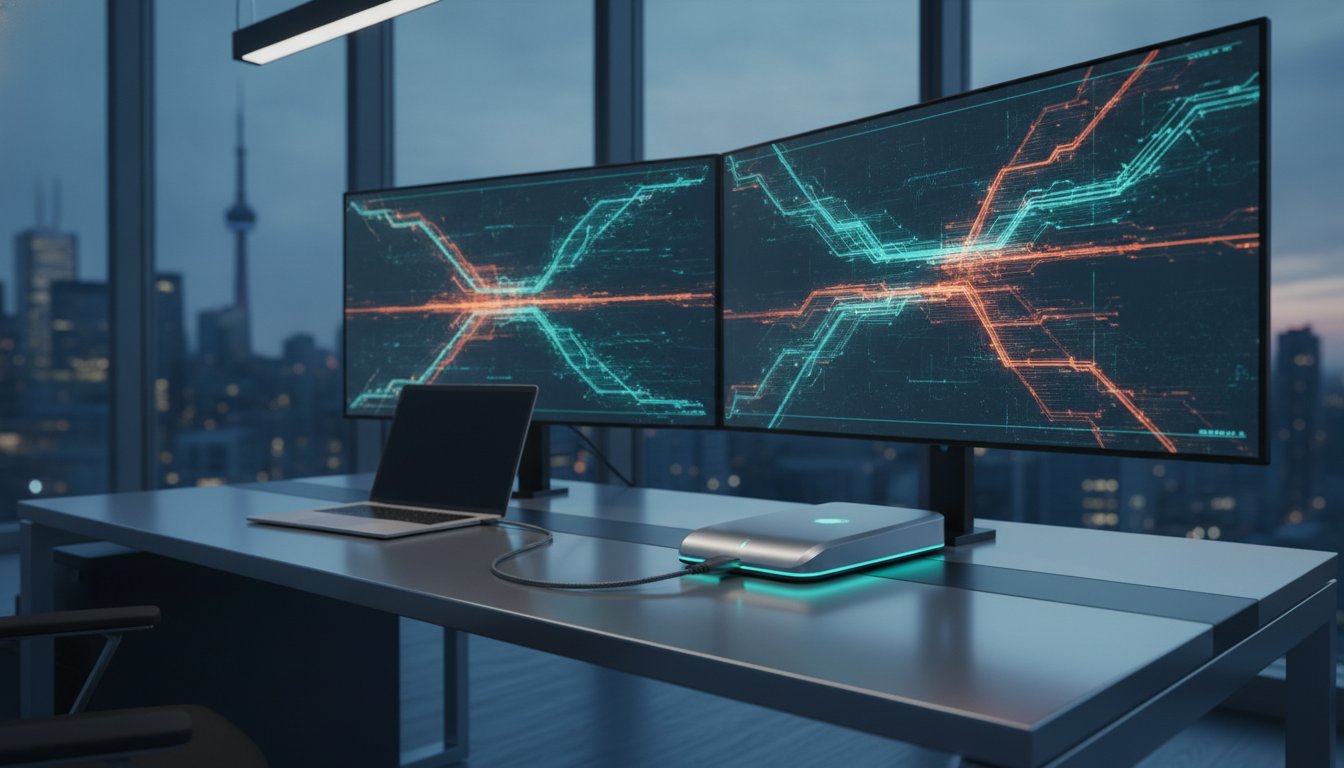
A messy desk is a sign of an inefficient workflow. If you're swapping cables or dealing with screen flickering, your hardware is failing you. Finding a reliable docking station for dual monitors canada is the fastest way to transform a cluttered workspace into a high-performance command centre. You need a solution that handles high-speed data and stable video output without the common confusion of HDMI versus DisplayPort compatibility.
It's frustrating when your laptop doesn't charge fast enough or your second monitor randomly cuts out during a call. We'll help you select a setup that offers single-cable connectivity and consistent power delivery for all your devices. This guide explores the latest 2026 standards, including Thunderbolt 5 and 140W charging. You'll learn how to choose the right hub, such as the DEVIA Leopard Series 11-in-1, to ensure your Canadian office remains organized, professional, and fully optimized for multitasking.
Key Takeaways
- Distinguish between USB-C and Thunderbolt standards to ensure your laptop supports high-resolution dual video output.
- Discover how to select the right docking station for dual monitors canada to eliminate cable clutter and organize your workspace.
- Compare HDMI and DisplayPort specifications to maintain stable 60Hz refresh rates without screen flickering.
- Learn the benefits of an integrated 11-in-1 hub that doubles as an ergonomic laptop stand for better thermal management.
The Essential Role of Dual Monitor Docking Stations in Canada
A Docking station is more than just a port expander. It acts as the central nerve centre for your entire Canadian workspace. By consolidating power delivery, data transfer, and video output into a single connection, it transforms a standard laptop into a desktop-class workstation. For professionals searching for a docking station for dual monitors canada, this hardware is the key to maintaining a clean, efficient desk. It eliminates the constant struggle of plugging and unplugging peripherals. This significantly reduces physical wear and tear on your laptop’s sensitive USB-C or Thunderbolt ports.
The shift toward hybrid work in Canada has changed how we view our home offices. We no longer accept compromised performance just because we aren't in a corporate headquarters. A multi-port hub provides the necessary bandwidth for high-speed external drives and crystal-clear video calls. It bridges the gap between portability and power. You get the freedom of a laptop with the expanded capability of a traditional desktop. This transition from "mobile-first" to "productivity-first" setups is now the standard for professionals from coast to coast.
Why One Screen is No Longer Enough
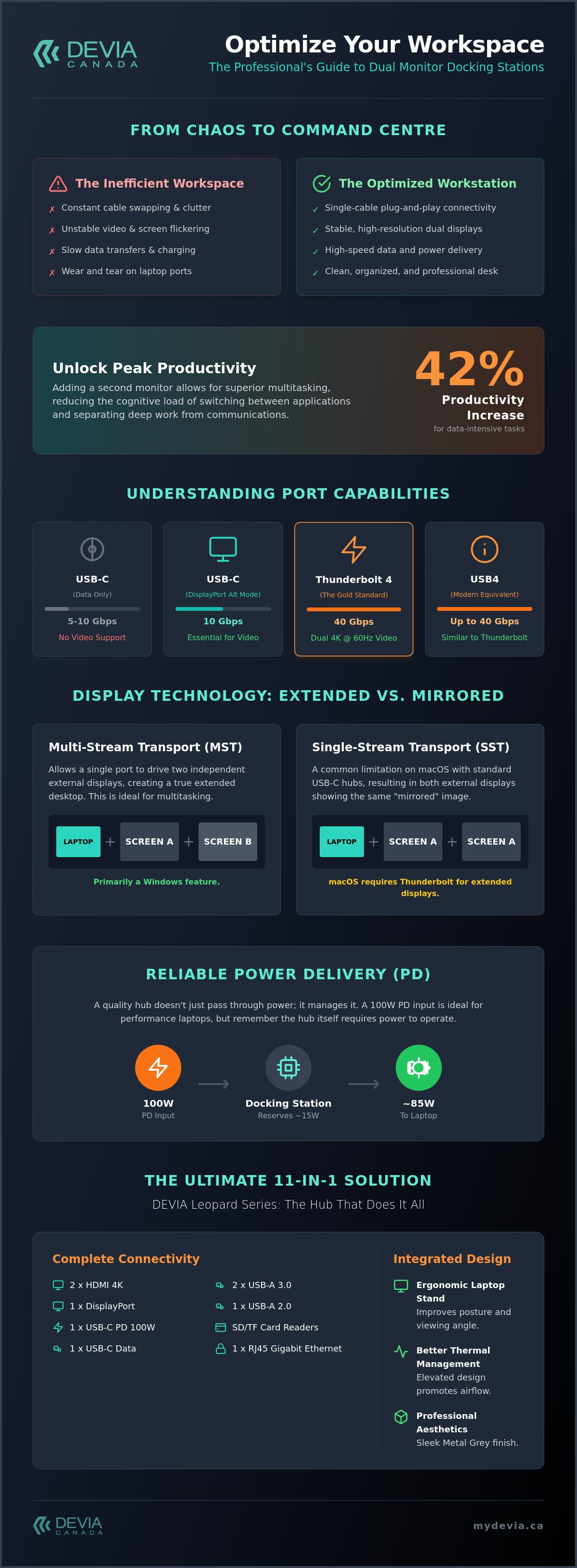
Modern workflows demand more visual real estate. Research suggests that adding a second screen can increase productivity by up to 42 percent for data-heavy tasks. It allows you to separate your primary focus from secondary distractions. You can keep your communication tools, like Slack or email, on one screen while dedicating the other to deep work. This setup minimizes the cognitive load of constantly switching between tabs. A permanent "plug-and-play" workstation centre ensures that you can transition from a mobile meeting to a full-scale production environment in seconds.
The Canadian Remote Work Landscape in 2026
As of 2026, Canada’s digital infrastructure has evolved to support seamless high-resolution streaming and complex multi-monitor configurations. Whether you’re working from a high-rise in Toronto or a home office in Halifax, reliable tech hardware is non-negotiable. Professionals now prioritize high-performance environments that can handle multiple tasks simultaneously. This shift has increased the demand for versatile hardware, including a multi-device charging station apple users can rely on to keep their ecosystem powered. A high-quality docking station for dual monitors canada provides the stability needed for reliable dual-screen output. It also serves as a fast-charging smart hub for your smartphone and accessories. Choosing a sleek Metal Grey finish ensures your tech looks as professional as it performs.
Technical Essentials for Dual Monitor Connectivity
Compatibility is the most frequent hurdle when setting up a docking station for dual monitors canada. While many ports look identical, their internal protocols vary significantly. A standard USB-C port might only support data, whereas a port with DisplayPort "Alt Mode" is essential for video output. If your laptop lacks this specification, your monitors won't receive a signal. Thunderbolt 4 remains the gold standard in 2026, offering 40Gbps bi-directional bandwidth. This ensures enough data overhead to drive two 4K displays at 60Hz while simultaneously transferring files from external drives.
- USB-C (Data Only): No video support.
- USB-C (Alt Mode): Supports video and data.
- Thunderbolt 3/4: High-speed video, data, and power.
- USB4: Performance similar to Thunderbolt 4.
Data transfer speeds also impact your daily efficiency. A hub offering 10Gbps (USB 3.2 Gen 2) is twice as fast as older 5Gbps models. This difference is noticeable when backing up large files or using high-resolution webcams. For a reliable and organized setup, consider the professional-grade options available at mydevia.ca to ensure your hardware meets these technical demands.
MST vs. SST: Understanding Multi-Stream Transport
Multi-Stream Transport (MST) is a critical feature for Windows users. It allows a single video signal to be split into two independent desktop environments. If you're using macOS, you'll likely encounter Single Stream Transport (SST) limitations on standard USB-C docks. This often results in "mirrored" displays where both external screens show the same image. To achieve an extended desktop on a Mac, you typically need a Thunderbolt-certified dock or a hub with specific driver support. Always verify your laptop’s graphics card can handle the total pixel count across three screens, including your laptop's built-in display.
Power Delivery (PD) Requirements
Modern productivity hubs don't just move data; they provide power. A 100W PD pass-through is the ideal specification for high-performance laptops. It's important to account for the "power tax" that the docking station consumes. A hub usually reserves 10W to 15W to power its own internal chips and connected USB peripherals. If you use a lower-wattage power brick, your laptop might charge slowly or even lose battery while plugged in. Using a high-quality apple charger with sufficient output ensures both your dock and your MacBook stay fully powered during intensive multitasking sessions.
Comparing Dual HDMI vs. DisplayPort Setups
Selecting a docking station for dual monitors canada involves a critical choice between HDMI and DisplayPort standards. HDMI 2.0 is the standard for most consumer displays, but HDMI 2.1 has become the new requirement for 8K resolutions or high-refresh 4K gaming. DisplayPort 1.4 remains the preferred choice for professional PC environments because it supports Multi-Stream Transport (MST) more efficiently. While both can deliver high-definition video, their bandwidth limits differ. A high-performance hub must balance these signals to ensure both screens operate at peak performance without lag.
Signal interference is a common culprit behind screen flickering and dropped connections. The DEVIA Leopard Series addresses this with a premium Metal Grey finish. This aluminium alloy casing isn't just for design. It provides essential electromagnetic shielding. This protection prevents the high-speed data from your USB ports from interfering with the delicate video signals heading to your monitors. Using high-quality, shielded cables is equally important. Cheaper alternatives often lack the internal wiring needed to maintain a stable connection over long periods.
The 4K @ 60Hz Benchmark
Visual fluidness is non-negotiable for professional comfort. A refresh rate of 60Hz is the minimum benchmark for reducing eye strain during long Canadian workdays. Many budget hubs claim 4K support but drop to 30Hz when a second monitor is connected. This results in a choppy cursor and blurry window movement. To drive dual 4K displays at 60Hz, your docking station for dual monitors canada needs a high-bandwidth controller. Proper cable organization is also essential. Use short, high-speed cables to avoid a "spaghetti" mess of wires behind your workstation centre. This keeps the signal path clean and your desk organized.
Legacy Port Support: VGA and Beyond
The transition to a digital-only workspace is nearly complete, but legacy hardware persists. Some Canadian office environments still rely on older monitors that use VGA connections. Replacing these screens isn't always a priority. Choosing an 11-in-1 hub provides the best future-proofing because it includes these legacy ports alongside modern HDMI outputs. It allows you to bridge the gap between old and new hardware. As your office evolves, you won't need to purchase a new hub. The multi-port versatility ensures you can connect to any projector or secondary screen you encounter, regardless of its age.
How to Choose the Right Multi-Port Hub for Your Workspace
Selecting a docking station for dual monitors canada requires a methodical approach to your hardware ecosystem. Don't buy based on price alone. Compatibility and port availability determine whether your setup will actually function as intended. Follow these four steps to identify the ideal hub for your desk centre.
- Step 1: Identify your laptop’s port specifications. Determine if your device uses standard USB-C, USB4, or Thunderbolt 4. As established in previous sections, video output requires Alt Mode or Thunderbolt certification to drive external displays.
- Step 2: Count your essential peripherals. List every device you use daily. This includes your mouse, keyboard, external SSDs, and webcams. Ensure the hub has enough USB-A and USB-C ports to accommodate them without needing extra adapters.
- Step 3: Determine your monitor input types. Check the back of your screens. If you have one HDMI and one DisplayPort monitor, you need a hub that supports both or provides dual HDMI ports for use with high-speed adapters.
- Step 4: Assess your ergonomic needs. Consider your desk space. A hub that integrates a laptop stand can save significant space and improve your viewing angle, reducing neck strain during long work sessions.
Port Density: How Many is Too Many?
High port density is essential for power users. Canadian creatives often require integrated SD and TF card readers for quick photo and video transfers from cameras. While Wi-Fi is convenient, a dedicated Gigabit Ethernet port is necessary for stable, lag-free video conferencing and large file uploads. An 11-in-1 configuration, such as the Leopard Series, provides a comprehensive balance. It offers enough variety to handle legacy hardware while supporting modern high-speed peripherals. You can find these versatile solutions at mydevia.ca to streamline your professional workflow and maximize desk efficiency.
Build Quality and Heat Dissipation
High-speed performance generates heat. Plastic hubs often throttle data speeds or disconnect when they get too warm during intensive tasks. Aluminum and metal housings are superior because they act as a heat sink, dissipating thermal energy away from the internal chips. Build quality also extends to the connector. A durable, reinforced Type-C connector is vital for a device that is plugged and unplugged daily. Just as a high-quality iphone 17 case protects your mobile hardware from external damage, a premium metal dock protects your workstation's internal connectivity from overheating and physical wear.
Leopard Series: The Ultimate 11-in-1 Dual Monitor Solution
The DEVIA USB C Laptop Docking Station Leopard Series (11 in 1) Multi-Port Type-C Fast Charging Smart Hub & Stand – Metal Grey is the definitive choice for sophisticated workspaces. Unlike the generic hubs discussed earlier, this unit integrates a high-performance connectivity suite directly into an ergonomic laptop stand. The premium Metal Grey finish provides a cohesive look for high-end professional hardware. For anyone searching for a docking station for dual monitors canada, this all-in-one solution provides the stability and port variety required for a high-output environment.
Connectivity is comprehensive. This 11-in-1 smart hub includes a precise selection of ports to handle every professional requirement:
- Dual HDMI Ports: Support for high-resolution multi-screen output.
- Gigabit Ethernet: Ensures a stable, wired internet connection for video calls.
- USB 3.0 Ports: High-speed data transfer for external drives and peripherals.
- SD and TF Card Readers: Essential for photographers and digital creators.
- Type-C Fast Charging: Integrated power delivery to keep your laptop at 100 percent.
Ergonomics Meets Connectivity
While most hubs occupy desk space, the Leopard Series utilizes an integrated stand to lift your device to eye level. This height adjustment is critical for reducing neck strain and improving long-term posture. Beyond physical comfort, the elevation provides a technical benefit: superior airflow. By lifting the laptop base, the hub facilitates better heat dissipation, preventing the thermal throttling that often occurs during intensive multitasking. You'll realize a much cleaner desk as the hub and its associated cables are neatly positioned beneath the elevated laptop, out of your primary line of sight.
The Fast Charging Advantage
Reliable power management is what separates this series from consumer-grade adapters. The Leopard Series uses Smart Hub technology to intelligently distribute wattage across all connected devices. It ensures your laptop receives maximum power while simultaneously driving external monitors and USB accessories. This level of reliability is why Canadian professionals trust Devia Canada for their essential tech. With your workstation fully optimized, you can focus on other priorities, like ensuring your mobile devices are protected with an iphone 17 screen protector. This docking station for dual monitors canada delivers the consistent performance needed to maintain a professional, high-speed workflow.
Optimizing Your Desktop for 2026 and Beyond
Building an efficient workspace requires more than just extra screens. It demands a reliable foundation that manages power, data, and video without compromise. You've learned how to navigate technical standards like MST and Power Delivery to ensure your hardware remains stable. By prioritizing build quality and ergonomic design, you can eliminate cable clutter and focus on high-level productivity. Investing in a high-quality docking station for dual monitors canada is the most effective way to unify your peripherals into a single, high-performance command centre.
Devia is a Canadian-based tech specialist dedicated to providing the tools you need for a modern office. The Leopard Series 11-in-1 versatility offers a premium Metal Grey ergonomic design that solves both connectivity and posture issues simultaneously. Shop the Leopard Series 11-in-1 Dual Monitor Docking Station at Devia Canada today to transform your daily workflow. It's time to reclaim your desk space and experience the efficiency of a truly organized professional environment.
Frequently Asked Questions
Will a dual monitor docking station work with my MacBook Air?
A dual monitor docking station works with MacBook Air, but compatibility depends on your specific processor. Base M1, M2, and M3 models natively support only one external display. To bypass this limitation, you need a dock with DisplayLink technology or a similar driver-based solution. Always check your Mac's chip specifications before purchase to ensure both screens will function as an extended desktop rather than just mirroring the same image.
Do I need two HDMI ports or one HDMI and one DisplayPort?
Your choice depends entirely on the input ports available on your monitors. Many professionals prefer dual HDMI for its universality across consumer displays. However, DisplayPort 1.4 is often better for high-resolution setups requiring Multi-Stream Transport (MST). If you have one of each, a versatile docking station for dual monitors canada like the Leopard Series provides the necessary flexibility to connect different hardware types without requiring extra adapters.
Can I charge my laptop through the docking station?
You can charge your laptop through the docking station if it supports Power Delivery (PD) pass-through. This feature allows a single cable to handle data, video, and power simultaneously. You must connect your laptop's original power brick or a compatible high-wattage charger to the dock's PD input port. This keeps your workspace organized and ensures your battery stays full during intensive multitasking sessions throughout the day.
Why is my second monitor not being detected by the dock?
Detection issues usually stem from incompatible cables or a lack of DisplayPort Alt Mode support on your laptop's port. Ensure you're using high-speed HDMI 2.0 or DisplayPort 1.4 cables to maintain signal integrity. Sometimes, a simple firmware update for the dock or a restart of the graphics driver solves the problem. If the issue persists, verify that your Type-C cable is rated for video transfer rather than just charging.
What is the difference between a USB-C hub and a docking station?
The main difference lies in power and permanent connectivity. A USB-C hub is typically a small, portable device designed for occasional port expansion. A docking station is a more robust centre for your workspace, often featuring its own power supply and support for multiple high-resolution displays. Docks generally offer higher data transfer speeds and more reliable performance for permanent desktop-class configurations in a home or corporate office.
Does a docking station for dual monitors require a special driver?
Most modern docking stations are "Plug and Play" and don't require special drivers for Windows or macOS. They utilize native system protocols like Thunderbolt or USB-C Alt Mode to function. However, if you're trying to run dual monitors on a MacBook Air or a laptop that doesn't natively support multiple displays, you'll need to install DisplayLink drivers to enable the extra video outputs through the USB port.
Can I use a dual monitor dock with a desktop PC?
You can use a dual monitor dock with a desktop PC provided the computer has a compatible USB-C or Thunderbolt port with video support. Many modern motherboards now include these ports to facilitate easy peripheral management. This is a great way to add extra ports to the front of your workstation or to easily switch your entire peripheral setup, including monitors and keyboards, between a laptop and a desktop.
Is a 100W power adapter necessary for a dual monitor setup?
A 100W power adapter is highly recommended for any docking station for dual monitors canada setup. While your laptop might only require 65W, the dock itself and connected peripherals consume a portion of that power. Using a 100W source ensures there's enough overhead to charge your laptop at full speed while powering external drives, keyboards, and high-resolution monitors without any performance drops or battery drain during heavy use.