

Docking Station for Dual Monitors Canada: The 2026 Productivity Guide
2026 Jul 28th
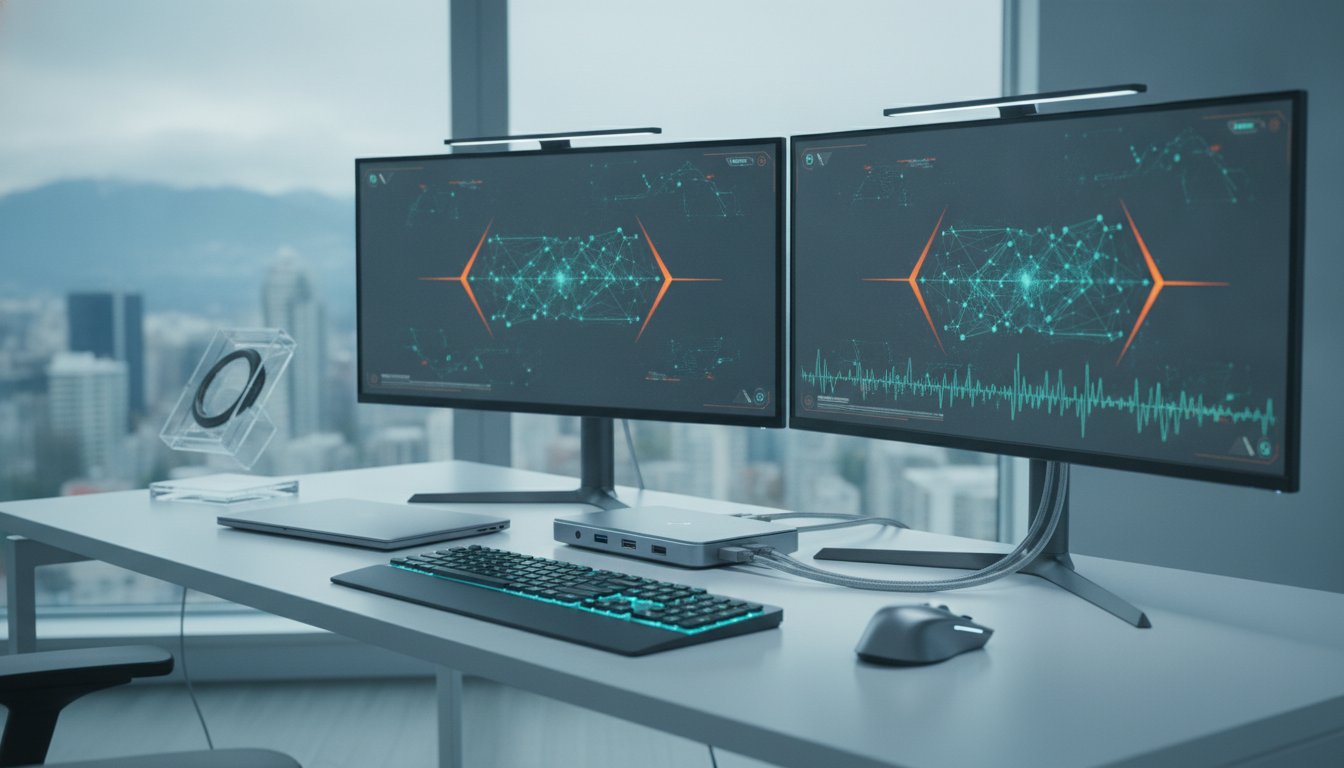
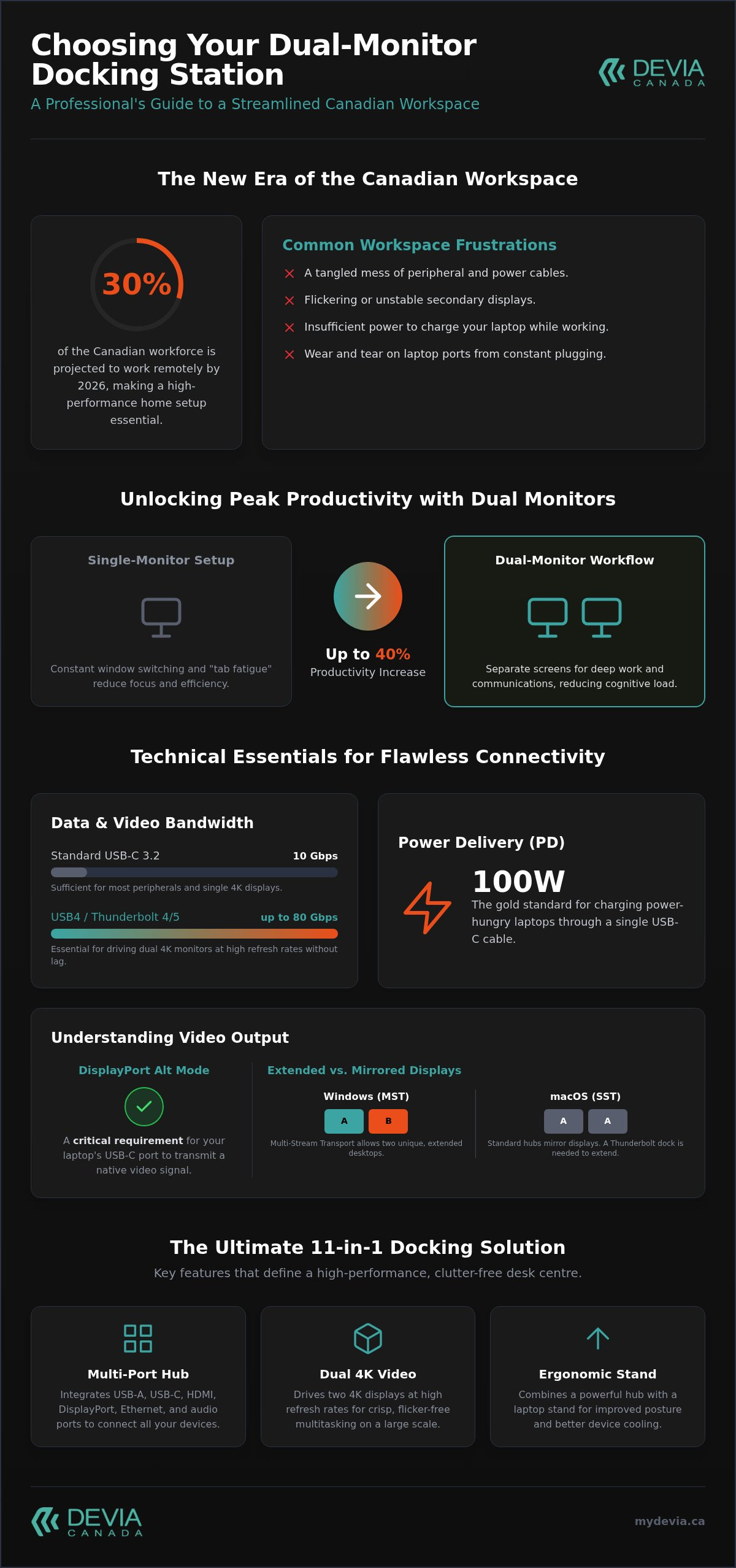
30% of the Canadian workforce is expected to work remotely by 2026. This shift makes a high-performance workspace essential rather than optional. You likely want a clean, organized desk centre but often face screen flickering and a tangle of cables. Dealing with insufficient power delivery or confusion over HDMI and DisplayPort standards shouldn't slow you down. It's time to streamline your workflow.
This guide explains how to choose the right docking station for dual monitors canada to maximize your multitasking efficiency. We'll show you how to secure reliable dual-screen output and high-speed data transfer through a single-cable connection. Discover why the DEVIA Leopard Series 11-in-1 is the premier choice for professionals seeking a metal grey aesthetic and fast-charging smart hub technology. We'll break down the latest 2026 connectivity standards to keep your Canadian office running at peak performance.
Key Takeaways
- Understand technical requirements like USB-C Alt Mode and Thunderbolt 4 to ensure stable, flicker-free video output across multiple screens.
- Discover how to select the ideal docking station for dual monitors canada to eliminate cable clutter and centralize your Canadian workspace.
- Learn to distinguish between HDMI 2.1 and DisplayPort 1.4 to maintain high refresh rates and crisp 4K resolution on both monitors.
- Identify your specific peripheral needs to ensure your multi-port hub supports high-speed data transfer and sufficient power delivery for charging.
- Explore the advantages of 11-in-1 designs that integrate a high-performance hub with an ergonomic laptop stand for a more comfortable and organized desk centre.
The Essential Role of Dual Monitor Docking Stations in Canada
A docking station serves as the central nervous system for a modern workspace. It is a high-performance hub that consolidates power delivery, data transfer, and multi-stream video into a single interface. For professionals across the country, this device transforms a portable laptop into a desktop-class powerhouse. It eliminates the need to manage multiple individual adapters. You get a streamlined connection that handles everything from high-speed external drives to dual 4K displays.
The Canadian workforce has undergone a permanent shift. Data from 2026 indicates that 47% of Canadian workers now spend less than five days a week in a traditional office. With approximately 30% of the workforce operating remotely in some capacity, the "mobile-first" mentality has evolved. Users now demand "productivity-first" environments. A docking station for dual monitors canada provides the stability required for this transition. It offers a permanent "plug-and-play" workstation centre that saves time and reduces frustration during every login.
Beyond efficiency, these hubs protect your investment. Constant plugging and unplugging of peripherals causes significant wear and tear on delicate laptop ports. A docking station absorbs this mechanical stress. By using a single connection point, you extend the lifespan of your laptop's integrated hardware while maintaining a clean, organized desk.
Why One Screen is No Longer Enough
Single-monitor setups often lead to "tab fatigue" and constant window switching. Transitioning to a dual-screen workflow can increase productivity by up to 40% for data-heavy tasks. It allows you to dedicate one screen to communication tools like Teams or Slack while keeping your primary workspace clear for deep work. This separation reduces cognitive load. It makes complex multitasking feel manageable. A dedicated docking station ensures this dual-output remains stable and flicker-free throughout the workday.
The Canadian Remote Work Landscape in 2026
National digital infrastructure now supports higher resolution streaming and more complex virtual collaboration than ever before. To keep pace, professionals from coast to coast require reliable tech hardware. High-speed internet is only half the battle; your local hardware must be able to process that data. Many users are also looking for integrated ecosystems, often pairing their workstations with multi-device charging station apple solutions to keep mobile devices powered alongside their main screens. This holistic approach to connectivity ensures that your Canadian home office remains as functional as any corporate headquarters.
Technical Essentials for Dual Monitor Connectivity
Selecting a docking station for dual monitors canada requires a clear understanding of port standards. The physical USB-C shape is universal, but the technology behind it varies. USB4 Version 2.0 now offers up to 80Gbps of bidirectional bandwidth, matching the performance of Thunderbolt 5. These high-speed standards are essential for driving two 4K displays at 60Hz or higher without lag. If your laptop uses standard USB-C 3.2, your data transfer speeds might be limited to 10Gbps. This is still sufficient for most peripherals, but it requires careful management of video bandwidth.
A critical requirement for any video output is DisplayPort "Alt Mode." This allows the USB-C cable to carry a native video signal. Without Alt Mode support on your laptop's port, the docking station cannot transmit video to your monitors. For a deeper look at how these signals interact with your hardware, consult a technical guide to monitor connections. This ensures you match your dock’s output with your monitor’s input capabilities correctly.
MST vs. SST: Understanding Multi-Stream Transport
Windows and macOS handle multiple displays differently. Windows users rely on Multi-Stream Transport (MST) to "extend" their desktop across two unique screens. Most macOS versions only support Single Stream Transport (SST) over standard USB-C hubs. This results in "mirroring," where both external monitors show the same image. To achieve a true dual-monitor extended setup on a Mac, you typically need a Thunderbolt-certified dock or a hub with a specialized chipset. Always verify your laptop’s graphics card specifications to ensure it can drive the total pixel count of your desired setup.
Power Delivery (PD) Requirements
Modern docking stations utilize Power Delivery (PD) 3.1 to charge your laptop through the same cable used for data and video. A 100W PD pass-through is the current gold standard. It provides enough energy for power-hungry workstations while accounting for the "power tax." This tax is the 15W to 20W of energy the hub itself consumes to run internal chips and power connected USB drives. If you use a lower-wattage apple charger, your laptop might charge slowly or even lose battery life during intensive tasks. Ensuring your power source exceeds your laptop’s requirements is vital for a reliable docking station for dual monitors canada. High-quality hubs like the Devia Leopard Series manage this power distribution intelligently to prevent overheating and connection drops.
Choosing between HDMI and DisplayPort is a critical step when configuring a docking station for dual monitors canada. HDMI 2.1 has become the standard for many consumer displays, offering massive bandwidth for high resolutions. DisplayPort 1.4 remains the gold standard for many professional PC monitors due to its robust handling of high refresh rates and consistent signal stability. If your monitors support both, DisplayPort is often the more reliable choice for extended desktop configurations. It handles the complexities of multi-stream data with fewer handshake issues than older HDMI versions.
High-quality cables are just as important as the hub itself. Flickering, black screens, or resolution drops are frequently caused by using outdated cables or cheap adapters. To maintain a stable 60Hz refresh rate on both screens, ensure your cables are rated for the specific version of HDMI or DisplayPort your dock provides. Using a cable that cannot handle the bandwidth will result in your system automatically downclocking the refresh rate to 30Hz, which is visible and distracting.
The physical build of your equipment also impacts performance. Premium options like the Leopard Series utilize a "Metal Grey" aluminium alloy housing. This material does more than just match high-end laptops. It acts as a shield against electromagnetic interference (EMI). Poorly shielded hubs can cause your mouse to lag or your screens to flicker when high-speed data is being transferred over Wi-Fi. A well-shielded docking station for dual monitors canada ensures that your video signals remain clean and uninterrupted even in environments with multiple wireless devices.
The 4K @ 60Hz Benchmark
A 60Hz refresh rate is the baseline for professional eye comfort. Lower rates, such as 30Hz, result in visible mouse lag and choppy window transitions. This leads to increased fatigue during long Canadian workdays. Driving dual 4K displays at 60Hz requires significant bandwidth. You must ensure your laptop’s port and the docking station both support the necessary throughput. To keep your workspace professional, organize your cables using the rear ports of the hub. This prevents a "spaghetti" effect and keeps your desk centre clear of clutter.
Legacy Port Support: VGA and Beyond
The transition toward all-digital workspaces is nearly complete, yet legacy hardware persists in many Canadian offices. You may occasionally need to connect to an older projector or a legacy monitor that only supports VGA. Choosing an 11-in-1 hub provides the best future-proofing. It allows you to maintain compatibility with older peripherals while prioritizing high-speed digital connections for your primary displays. This versatility ensures that your workstation remains functional regardless of the hardware available at different client sites or office locations.
How to Choose the Right Multi-Port Hub for Your Workspace
Selecting the ideal docking station for dual monitors canada involves a systematic evaluation of your current hardware and future workflow requirements. Avoid purchasing based on port count alone. Instead, follow a logical four-step framework to ensure compatibility and efficiency.
- Step 1: Identify your laptop’s port specifications. Confirm if your device supports Thunderbolt 4, USB4, or standard USB-C with Alt Mode. This determines the maximum resolution and data speeds your setup can handle.
- Step 2: Count your essential peripherals. List every device that requires a permanent connection. This typically includes a mouse, keyboard, and external storage drives. Ensure the hub has enough high-speed USB-A and USB-C ports to accommodate them simultaneously.
- Step 3: Determine your monitor input types. Check the back of your displays. If you have one HDMI and one DisplayPort monitor, you need a hub that offers both or use appropriate high-quality adapters to maintain signal integrity.
- Step 4: Assess your ergonomic needs. Consider whether you want a compact hub that sits on your desk or a multi-functional unit that doubles as a laptop stand to improve your viewing angle.
Port Density: How Many is Too Many?
For Canadian creatives and photographers, integrated SD and TF card readers are essential for rapid file transfers. While Wi-Fi has improved, a dedicated Gigabit Ethernet port remains the only way to ensure 100% stability during critical video conferences. An 11-in-1 configuration, such as the Leopard Series, provides the best balance. It offers enough variety to handle legacy hardware and modern peripherals without becoming an oversized obstacle on your desk centre.
Build Quality and Heat Dissipation
High-performance docking stations generate heat during heavy data transfers and dual 4K video output. Aluminium and metal housings are superior to plastic alternatives because they act as a natural heat sink. This prevents thermal throttling and protects the internal chipsets from long-term damage. Durable Type-C connectors are also vital for daily use. Just as a premium iphone 17 case protects your mobile device from daily wear, a rugged metal dock protects your laptop's internal hardware by absorbing the mechanical stress of peripheral connections. To secure a reliable and stylish workstation, browse our professional docking solutions today.
Leopard Series: The Ultimate 11-in-1 Dual Monitor Solution
The DEVIA Leopard Series 11-in-1 USB-C Laptop Docking Station represents the evolution of the modern workspace centre. Unlike traditional hubs that sit as passive blocks on your desk, this unit integrates a high-performance multiport hub directly into an adjustable laptop stand. This 2-in-1 design addresses the primary pain point of hybrid work: the struggle to balance connectivity with physical comfort. It provides a stable foundation for your docking station for dual monitors canada while ensuring your primary screen is positioned exactly where you need it.
Crafted with a premium Metal Grey finish, the Leopard Series is designed to complement high-end professional laptops. The aesthetic is professional and modern. Beyond its looks, the hub features a comprehensive port selection engineered for maximum utility. You get Dual HDMI ports for reliable multi-monitor output, a Gigabit Ethernet port for lag-free conferencing, and three USB 3.0 ports for high-speed peripheral data transfer. Integrated SD and TF card readers round out the package, making it an all-in-one solution for both office tasks and creative projects.
Ergonomics Meets Connectivity
Elevating your laptop to eye level is a fundamental ergonomic requirement. It reduces neck strain and improves posture during long hours of deep work. The Leopard Series facilitates this by lifting your device while keeping all your connections tucked away. This elevation also provides a secondary benefit: improved airflow. By raising the chassis, the stand allows for better heat dissipation from your laptop's internal fans. This prevents thermal throttling during intensive video rendering or data processing. You realize a cleaner, more organized desk because the hub and its associated cables are effectively hidden beneath the elevated laptop.
The Fast Charging Advantage
Power management is handled through advanced Smart Hub technology. This ensures efficient distribution of energy across all connected devices, from your external monitors to your phone. The system is fully compatible with the latest mobile hardware. You can focus on your productivity, ensuring your iphone 17 screen protector remains the only thing you have to worry about regarding your mobile device's safety. Canadian professionals trust Devia because our products bridge the gap between technical specifications and real-world utility. This 11-in-1 docking station for dual monitors canada is the final piece of the puzzle for any high-efficiency workspace.
Future-Proof Your Canadian Workspace
Building a high-performance desk centre requires more than just extra ports. It's about ensuring your hardware supports the latest Power Delivery and video standards to prevent flickering and lag. You've learned that selecting the right docking station for dual monitors canada involves balancing technical specs with ergonomic needs. High-speed data transfer and stable 4K output are now the baseline for professional efficiency in 2026. Don't settle for a cluttered desk when a single-cable solution is available.
As a Canadian-based tech specialist, Devia provides the tools needed to navigate these technical requirements. The Leopard Series 11-in-1 offers unmatched versatility with its premium Metal Grey ergonomic design; it effectively combines a high-speed hub with a functional stand. This setup ensures your workstation remains organized and your laptop stays cool during intensive multitasking. It's the most efficient way to bridge the gap between portability and desktop-class performance.
It's time to transform your hybrid office into a productivity powerhouse. Shop the Leopard Series 11-in-1 Dual Monitor Docking Station at Devia Canada to upgrade your connectivity today. Your streamlined workspace is just one cable away.
Frequently Asked Questions
Will a dual monitor docking station work with my MacBook Air?
Yes, but compatibility depends on your specific processor. Base M1, M2, and M3 MacBook Air models natively support only one external display. To run dual monitors on these devices, you need a docking station with DisplayLink technology or a workaround. MacBook Air models with Intel processors or newer Pro/Max chips support dual displays natively through a compatible hub. Always verify your chip's display limitations before purchasing.
Do I need two HDMI ports or one HDMI and one DisplayPort?
Your choice depends entirely on the input ports available on your monitors. Most professional displays use HDMI 2.1 or DisplayPort 1.4. A versatile docking station for dual monitors canada often provides one of each to accommodate different hardware generations. If both your monitors only have HDMI inputs, ensure the dock has dual HDMI outputs or use a high-quality DisplayPort-to-HDMI adapter to maintain signal integrity.
Can I charge my laptop through the docking station?
You can charge your laptop if the docking station supports Power Delivery (PD) and your laptop's USB-C port is PD-compatible. You must connect your laptop’s power adapter to the dedicated PD-in port on the dock. The station then passes electricity to your laptop while simultaneously handling data and video signals. This single-cable setup keeps your workspace organized and ensures your battery remains full during intensive tasks.
Why is my second monitor not being detected by the dock?
Detection issues are usually caused by a lack of bandwidth or an incompatible host port. Ensure your laptop’s USB-C port supports DisplayPort Alt Mode or Thunderbolt connectivity. If you are using a Mac with a base M-series chip, it won't detect a second monitor without specialized DisplayLink software. Check that your cables are rated for the resolution you are using and that the dock is receiving sufficient power.
What is the difference between a USB-C hub and a docking station?
A docking station is designed for permanent desk setups and offers higher power delivery and more video outputs. USB-C hubs are typically portable, bus-powered devices with fewer ports and lower bandwidth. Docking stations often include their own power supplies or support high-wattage pass-through. This allows them to charge your laptop and run multiple high-resolution screens and peripherals simultaneously without draining your laptop's battery.
Does a docking station for dual monitors require a special driver?
Most modern Plug-and-Play docks do not require drivers for Windows or macOS. However, docks that use DisplayLink technology to bypass hardware display limits do require specific software installation. It's best to check the manufacturer's website for the latest firmware updates. Keeping your software current ensures stable performance and maintains compatibility with the latest operating system updates across all your connected devices.
Can I use a dual monitor dock with a desktop PC?
Yes, provided your desktop has a compatible USB-C or Thunderbolt port that supports video output. Many modern motherboards and graphics cards now include these ports. Using a docking station for dual monitors canada with a desktop allows you to quickly switch your peripherals between a work laptop and a home PC. This eliminates the need to manually swap individual cables for your keyboard, mouse, and monitors.
Is a 100W power adapter necessary for a dual monitor setup?
A 100W adapter is the gold standard for high-performance setups. The docking station itself consumes roughly 15W to 20W to power its internal chips and connected USB peripherals. Using a 100W source ensures your laptop still receives approximately 80W to 85W of power. This is sufficient to charge most professional-grade laptops even while they are under heavy load from driving dual 4K displays.