

Connecting Your Laptop to a Docking Station: The Ultimate 2026 Setup Guide
2026 Jul 10th
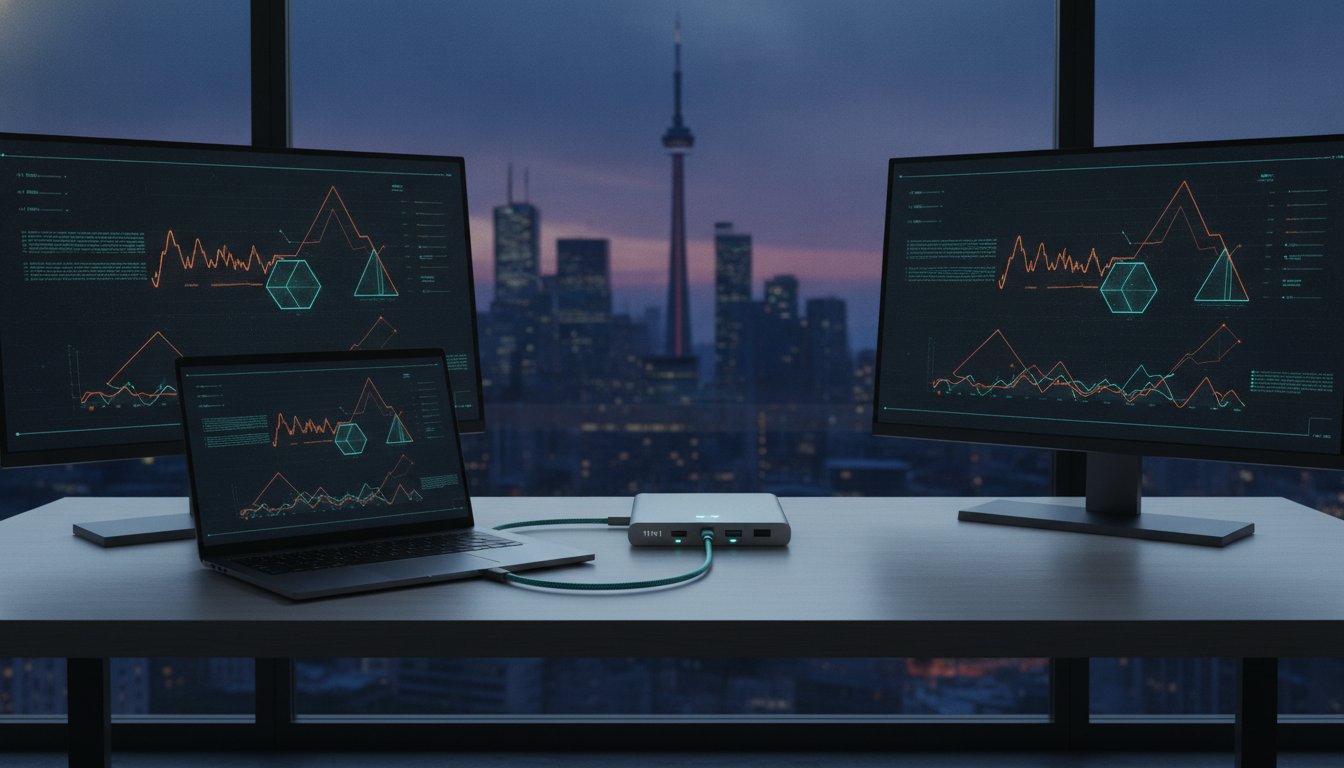
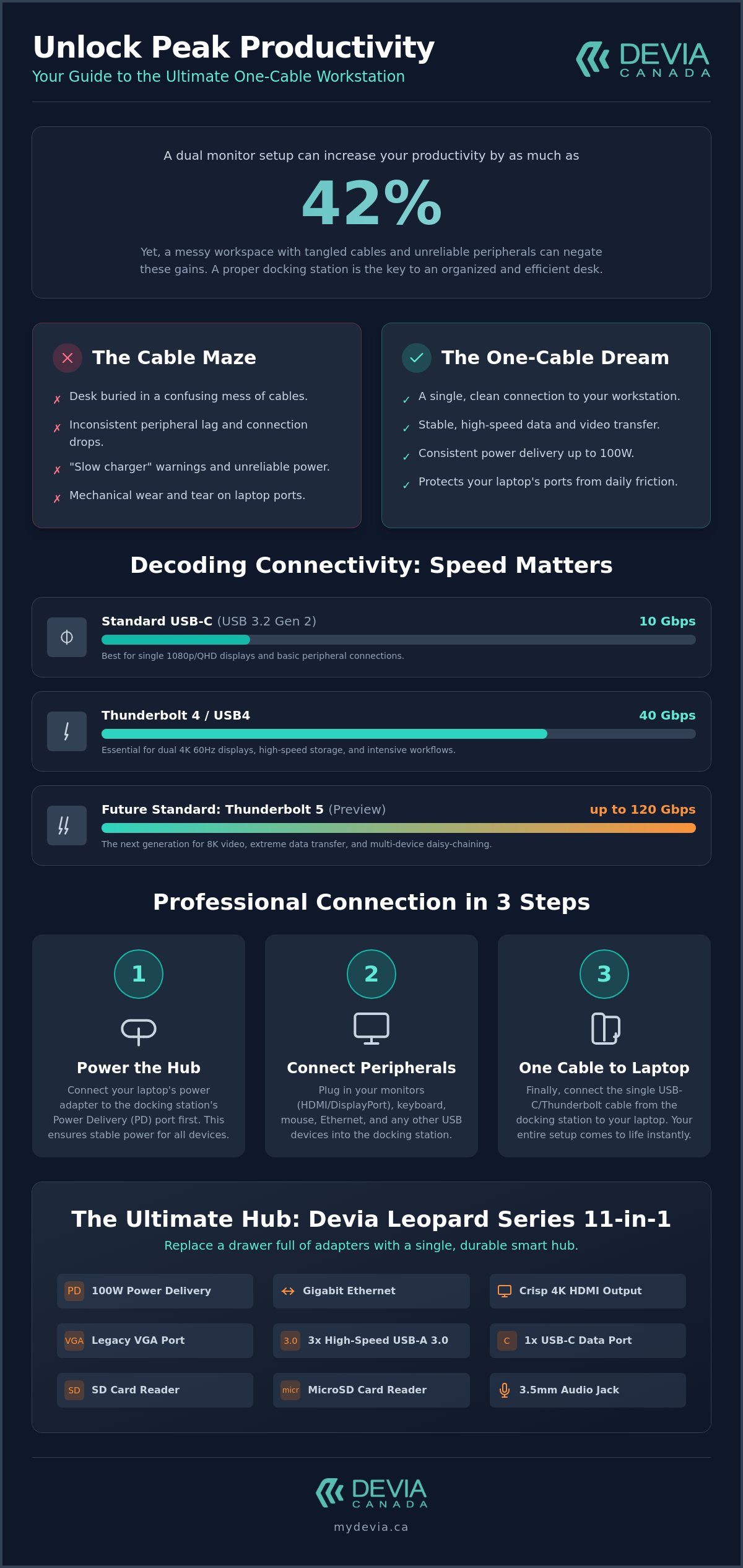
Did you know that a dual monitor setup can increase your productivity by as much as 42 percent? Despite this clear advantage, many professionals still struggle with a desk buried in messy cables and inconsistent peripheral lag. Connecting your laptop to a docking station should be a seamless process that transforms your portable device into a desktop powerhouse. You want a workspace that’s organized and efficient; not a confusing maze of USB-C and Thunderbolt cables that fail to charge your device properly.
We understand that navigating connectivity standards feels like a full-time job. This guide simplifies the technical landscape of 2026 to help you achieve a true one-cable configuration. You will learn how to optimize your laptop to docking station setup for 4K video output and high-speed data transfer. We’ll preview the latest standards like Thunderbolt 5 and show you how to use versatile hardware, such as the Devia Leopard Series 11-in-1 hub, to centre your workflow. From ergonomic monitor placement to cable management, this is your roadmap to a professional workstation.
Key Takeaways
- Simplify your workspace by properly connecting your laptop to a docking station using modern universal standards.
- Identify critical differences between USB-C and Thunderbolt to ensure your hardware supports 4K video and rapid data transfer.
- Follow a professional step-by-step connection sequence to eliminate peripheral lag and ensure consistent power delivery.
- Master ergonomic workstation design by utilizing integrated stands that help you organize cables and elevate your screen to eye level.
- Discover the 11-in-1 versatility of the Devia Leopard Series to replace multiple adapters with a single, metal grey smart hub.
Understanding the Connection: Laptop to Docking Station Basics
A docking station acts as the central hub for your entire workstation. It bridges the gap between the portability of a modern notebook and the power of a desktop environment. In the past, connecting your laptop to a docking station often required proprietary hardware that only worked with specific models. Today, the industry has shifted toward universal standards like USB-C and Thunderbolt. This transition means a single high-performance hub from Devia Canada can serve as a permanent desk interface for various devices regardless of their manufacturer.
The necessity of these stations has grown alongside the trend of ultra-thin laptop design. While modern machines are lighter and more portable than ever, they often lack the physical space for essential ports like HDMI, Ethernet, or multiple USB-A connections. For a professional, relying solely on built-in ports is inefficient. A dedicated hub restores this lost functionality while providing a stable point for power delivery and high-resolution video output. It's a solution that prioritizes both desk aesthetics and functional utility.
The Evolution of Laptop Connectivity
USB-C technology changed the landscape of workstation design by allowing a single cable to carry data, video, and power. This eliminated the need for "snap-in" mechanical docks that were prone to hardware failure. Canadian professionals now distinguish between bus-powered hubs and self-powered docking stations. Bus-powered units are excellent for travel, but self-powered options provide the consistent energy required for high-draw peripherals. Devia Canada focuses on multi-port solutions that consolidate these needs into a durable, metal grey chassis.
Key Benefits for Your Workstation
The primary advantage of a modern setup is the "one-cable" experience. Instead of plugging in five or six individual cords every morning, you connect one cable from your laptop to a docking station. This drastically reduces mechanical wear on your laptop's internal ports. Constant friction from daily plugging can lead to loose connections or expensive repairs. By using a centralized hub, you protect your primary device while gaining access to stable 4K video and wired networking that built-in Wi-Fi cards cannot always match.
Interface Standards: USB-C vs. Thunderbolt vs. USB 4
Connecting your laptop to a docking station requires understanding what happens behind the physical port. While USB-C and Thunderbolt ports look identical, their logical capabilities differ significantly. A standard USB-C (USB 3.2 Gen 2) port offers 10 Gbps of bandwidth. In contrast, Thunderbolt 4 and USB4 provide 40 Gbps. The jump to Thunderbolt 5 in 2026 provides up to 120 Gbps in one direction. Bandwidth determines how much data can flow simultaneously. If you want to drive dual 4K monitors while transferring large files, that extra headroom is essential.
To identify your laptop's capabilities, look for icons next to the port. A lightning bolt signifies Thunderbolt. A "D" or "DP" icon indicates DisplayPort Alt Mode support. A battery icon means the port supports Power Delivery. Understanding these symbols ensures you don't buy a high-end dock for a port that only supports basic data transfer. If no icon is present, consult your manufacturer's technical specifications to verify compatibility.
Decoding Power Delivery (PD) Standards
Pass-through charging allows your docking station to act as a bridge. You plug your laptop's power adapter into the hub, which then sends power to the laptop. To avoid the "slow charger" warning, your station's output must match or exceed your laptop's requirements. Most workstations require at least 65W to 100W. If your dock only provides 45W, your battery might drain during intensive tasks. High-performance USB-C multi-port hubs solve this by supporting up to 100W PD pass-through, ensuring your device stays charged under heavy workloads.
Video Output and Data Transfer Speeds
HDMI and DisplayPort are the primary standards for external screens. DisplayPort often handles higher refresh rates more effectively in multi-monitor setups. When connecting your laptop to a docking station, check the HDMI version. HDMI 2.1 is necessary for 4K at higher refresh rates. Driving a single 4K display at 60Hz requires approximately 12.5 Gbps of raw bandwidth. This is why basic 5 Gbps USB-C ports often struggle or limit you to 30Hz, causing visible lag. Professional docking stations use higher bandwidth channels to maintain smooth 4K 60Hz outputs on multiple screens simultaneously.
- Thunderbolt 4/5: Best for dual 4K or single 8K setups.
- USB4: High-speed 20 Gbps data transfer for external drives.
- USB-C 3.2: Reliable for single monitor and peripheral use.
Step-by-Step Guide: How to Connect Your Laptop to a Docking Station
Connecting your laptop to a docking station shouldn't be a trial-and-error process. A systematic approach ensures all peripherals initialize correctly without driver conflicts. This "one-cable" setup allows you to transition from a mobile state to a high-performance desktop environment in seconds. Before you begin, clear your desk of clutter and ensure your power supply meets the wattage requirements identified in the previous section. Having a clean workspace prevents cable tension and helps maintain the longevity of your ports.
Initial Hardware Connection
Follow this specific order of operations to avoid peripheral lag or common connectivity errors. Connecting the laptop last allows the dock's internal controller to recognize all attached hardware before the operating system attempts to hand off data and video signals.
- Step 1: Plug your external monitors, keyboard, mouse, and Ethernet cable into the appropriate ports on the dock.
- Step 2: Connect the docking station's power adapter to a standard Canadian wall outlet. Confirm the hub's indicator light is active.
- Step 3: Link the dock to your laptop using the provided high-speed host USB-C or Thunderbolt cable.
Wait for the operating system to play the "device connected" chime. This indicates that the handshake between your laptop to a docking station is complete. If you're using a bus-powered hub, ensure your laptop's own power adapter is connected to the hub's PD port to maintain a consistent charge.
Software and Display Configuration
Your operating system should automatically detect the new hardware, but fine-tuning is required for peak productivity. In Windows 11, navigate to Settings > System > Display. On macOS, go to System Settings > Displays. Use the "Identify" button to see which screen is which. Drag the virtual screen icons to match your physical desk layout. This ensures your mouse moves naturally across monitors.
Set your primary display and adjust refresh rates to the highest supported value for better eye comfort. Don't forget to check your audio settings. Ensure sound output defaults to your external speakers or headset rather than the laptop's internal speakers. If you want to further organize your workspace, consider how a multi-device charging station apple setup can manage your mobile accessories alongside your main workstation.
Troubleshooting Common Errors
If you encounter a "No Signal" message on your monitor, verify that the cable is seated firmly in both the dock and the screen. Sometimes a simple power cycle of the docking station resolves "Device Not Recognized" errors. Unplug the host cable, wait ten seconds, and reconnect. For persistent issues, verify that your laptop's USB-C port supports DisplayPort Alt Mode. Many connection problems stem from using a cable that isn't rated for high-bandwidth video transfer; always use the cable that came with your station.
Maximizing Productivity: Ergonomics and Port Management
Setting up your laptop to docking station interface is the first step toward a functional office. However, physical organization is just as critical as digital connectivity. Many users rely on flat-lying hubs that sit directly on the desk surface. These often contribute to cable clutter and force you to look down at your screen; this leads to chronic neck strain over long workdays. An integrated stand solves these issues by elevating the laptop to eye level. This creates a dual-screen environment where the laptop display acts as a secondary monitor at the correct height, promoting a neutral spine position.
Heat dissipation is a vital benefit of elevation that many professionals overlook. High-performance laptops generate significant heat when driving external 4K displays and running intensive software. Placing a device flat on a desk restricts airflow to the bottom intake vents. Elevating the chassis allows for better thermal regulation. This prevents thermal throttling, ensuring your hardware maintains peak processing speeds without the fans working overtime. Performance remains consistent because the hardware stays within its optimal temperature range.
The Benefits of an Integrated Stand
A hybrid stand and dock unit optimizes your desk footprint. It eliminates the need for a separate laptop riser, which keeps your workspace clean and professional. This design also improves your appearance in virtual meetings. By raising the built-in webcam to eye level, you avoid the unflattering angles common with low-sitting devices. It's a professional adjustment that enhances your digital presence during video conferences. You save space while gaining a more functional, ergonomic centre for your daily tasks.
Essential Peripheral Port Checklist
Your docking station should act as a bridge for all your hardware. A professional setup requires a variety of ports to handle both modern and legacy equipment. Verify that your hub includes these critical connections to maximize your efficiency:
- USB-A 3.0: Essential for legacy printers, wired mice, and older external hard drives.
- SD/TF Card Slots: A requirement for photographers and creative professionals who need rapid data transfers.
- RJ45 Ethernet: Provides a stable, high-speed connection when office Wi-Fi becomes unreliable or congested.
- 3.5mm Audio: Allows for direct connection to high-quality desktop speakers or headsets.
While you optimize your desk environment, remember to protect your mobile technology too with a premium iphone 17 case. A well-organized office deserves accessories that match its quality. Upgrade your workstation with a professional Leopard Series 11-in-1 hub and stand to achieve the ultimate one-cable configuration.
The Devia Leopard Series: The Ultimate 11-in-1 Solution
The Leopard Series 11-in-1 USB-C Laptop Docking Station from Devia Canada represents the final piece of a high-performance workstation. While previous sections detailed the technical standards and ergonomic principles, this hardware brings those concepts together into a single, cohesive unit. Connecting your laptop to a docking station shouldn't involve compromises; this smart hub ensures you have every port necessary for a professional workflow. It combines the functionality of a high-speed data centre with the physical benefits of an integrated stand, all housed in a durable metal grey chassis.
Professional Build Quality and Design
Devia Canada prioritizes material quality to ensure long-term reliability in hybrid work environments. The metal grey finish isn't just an aesthetic choice; it provides a rugged exterior that resists daily wear while matching the design language of premium hardware. This single unit replaces up to 11 separate adapters, significantly reducing desk clutter. Its compact, foldable design allows you to maintain a consistent laptop to docking station configuration whether you're working from a home office or a corporate centre.
- Durability: Metal grey alloy construction for enhanced heat dissipation and impact resistance.
- All-in-One Utility: Replaces the need for multiple dongles by providing 11 distinct functions.
- Ergonomic Integration: Built-in stand elevates your screen to eye level for better posture.
- Travel-Ready: Slim profile fits easily into standard laptop bags for seamless commuting.
Smart Hub Technology for Fast Charging
Reliable power delivery is essential for maintaining productivity during long shifts. The Leopard Series by Devia Canada features advanced circuitry that supports up to 100W PD pass-through charging. This ensures your laptop and mobile accessories stay powered without the risk of overcharging or thermal issues. The hub manages power distribution across its ports intelligently, so high-draw devices like external drives don't cause your monitors to flicker. This 11-in-1 versatility enables professional multitasking by providing every essential connection in a single, high-performance unit.
Technical specifications include three USB 3.0 ports for 5 Gbps data transfers, HDMI output supporting 4K resolution, and a VGA port for older display hardware. Creative professionals benefit from integrated SD and TF card slots, while the RJ45 Ethernet port provides the stable, wired connection required for secure data handling. By choosing a solution from Devia Canada, you invest in a hardware ecosystem that scales with your professional demands. Your workstation becomes a centralized, efficient environment that supports your best work every day.
Optimize Your Professional Workspace
Building a high-performance workstation in 2026 requires more than just extra ports. It's about creating a centralized environment where hardware and ergonomics work in tandem. By mastering the connection from your laptop to a docking station, you eliminate the daily friction of cable management and peripheral lag. You now have the technical knowledge to choose the correct interface standards and the practical steps to configure a multi-monitor setup that supports your professional goals.
The right hardware transforms your workflow from a cluttered desk into a streamlined centre of productivity. The Leopard Series by Devia Canada brings these elements together; it provides the 11-in-1 multi-port versatility needed for high-speed data transfer while maintaining a professional metal grey aesthetic. With integrated fast charging and a durable stand design, it addresses both the connectivity and health requirements of the modern Canadian office.
Upgrade your workstation with the Devia Canada Leopard Series 11-in-1 Docking Station to achieve a true one-cable configuration. You can now approach your daily tasks with the confidence that your technology is organized, optimized, and ready for peak performance.
Frequently Asked Questions
Do I need a docking station if my laptop has an HDMI port?
You still benefit from a station if you require multiple peripherals or a single-cable transition. An HDMI port only handles video output; a laptop to docking station setup manages power, high-speed data, and wired internet simultaneously. It simplifies your desk by replacing several individual cables with one. This reduces the mechanical wear on your laptop ports caused by constant daily plugging and unplugging.
Can a USB-C docking station charge my laptop while I work?
Yes, provided the hardware supports Power Delivery (PD) standards. You plug your laptop's power adapter into the dock's PD-in port, which then passes energy directly to your device. This ensures your battery stays full while you drive external monitors and intensive applications. It eliminates the need to carry your charger between your home and the office every day.
Will a docking station work with both a MacBook and a Windows laptop?
Most universal USB-C and Thunderbolt stations support both operating systems without issue. You should verify that your specific MacBook model supports multiple external displays. Base-model M1, M2, and M3 chips often require specific "DisplayLink" drivers or hardware to drive more than one monitor. Windows laptops generally support multi-monitor setups natively as long as the port supports DisplayPort Alt Mode.
How many monitors can I connect to a single docking station?
Most professional docks support two to three monitors depending on the available bandwidth. A Thunderbolt 4 connection can drive dual 4K screens at 60Hz without compromising data speeds. Basic USB-C hubs may limit you to a single external display or lower refresh rates like 30Hz. Always check the HDMI and DisplayPort versions on the dock to ensure they match your monitor's resolution requirements.
What is the difference between a USB-C hub and a docking station?
Hubs are compact, bus-powered devices designed for travel and basic port expansion. Docking stations are larger stationary units with dedicated power supplies that plug into a wall outlet. Stations offer higher charging wattage and more stable connections for high-performance peripherals like external NVMe drives. They provide a more permanent, reliable centre for a professional Canadian home office or corporate workstation.
Why is my laptop not detecting the monitors connected to the dock?
The most common cause is a port that lacks DisplayPort Alt Mode support. If your laptop to docking station connection fails to show video, verify that you're using the high-speed cable provided with the dock. Sometimes a simple power cycle resolves the issue. Unplug the dock from the wall for ten seconds to reset the internal handshake before reconnecting the host cable.
Does a docking station slow down my internet speed if I use the Ethernet port?
A wired Ethernet connection through a dock is typically faster and more reliable than Wi-Fi. Most modern stations include a Gigabit Ethernet port that provides a dedicated 1,000 Mbps lane. This connection isn't subject to the interference or signal drops common with wireless routers. It's the preferred method for video conferencing and large file transfers where stability is a priority.
Is it safe to leave my laptop connected to the docking station overnight?
It's perfectly safe due to integrated power management circuitry found in modern hardware. Laptops and smart hubs like the Leopard Series communicate to stop charging once the battery reaches 100 percent. This prevents overcharging and protects your device from overheating or battery degradation during extended use. You can leave your workstation connected indefinitely without worrying about damaging your laptop's internal components.